Allocating Meetings
Ordinate allows flexible management of meeting allocations, ensuring that spaces are assigned based on your organization’s specific needs. Depending on how your system is configured, meetings can either be requested without a reserved location or automatically allocated to a space.
Unallocated Meetings
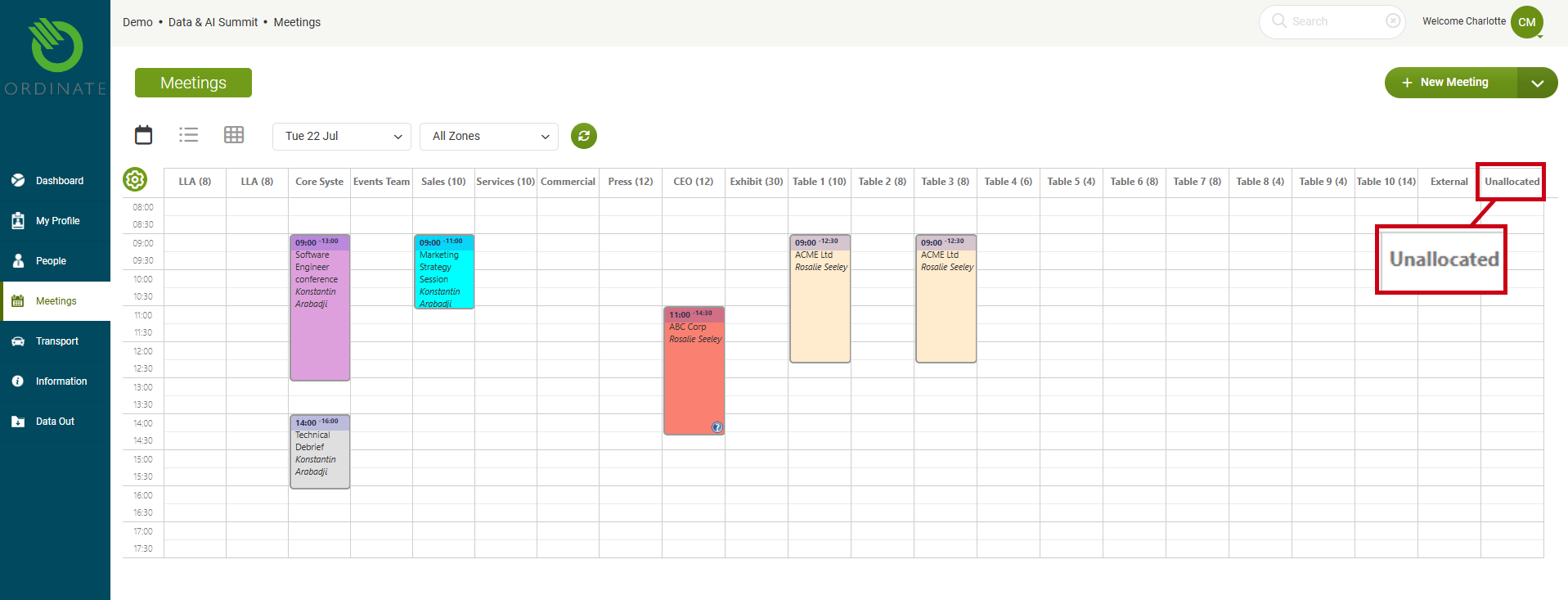
In the calendar view, there is an Unallocated column. This column is not a physical location but a placeholder for meetings that have been created but not yet assigned to a specific location.
- While fixed meeting spaces prevent overlaps, the Unallocated column allows multiple meetings to overlap, giving you the flexibility to manage these meetings until they are allocated to a space.
(Screenshot placeholder: Unallocated meetings in the calendar view)
Manual Allocation of Meetings
In many organizations, users with limited permissions may request a meeting, but only designated team members have the ability to allocate it to a specific space. This is often part of an approval process.
Approaches to Manual Allocation
Different teams may adopt different approaches to handling allocations:
- First Come, First Served: Some teams prefer to allocate meetings immediately upon request to ensure spaces are reserved as quickly as possible.
- Optimized Allocation: Others may allow requests to accumulate and allocate meetings closer to the event, optimizing space usage based on business priorities, seniority, or evolving needs.
Methods of Manual Allocation
-
From the Calendar View:
-
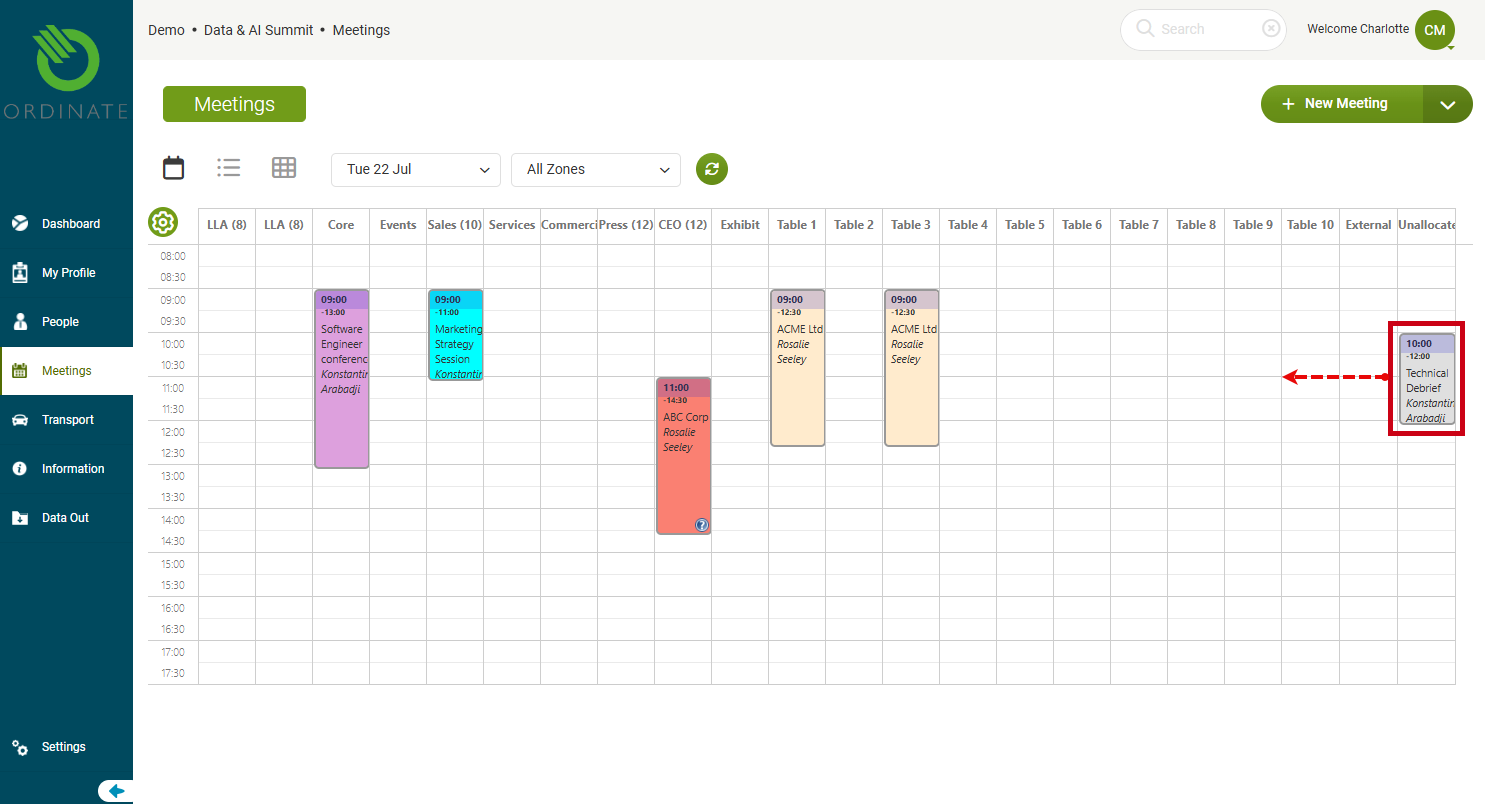
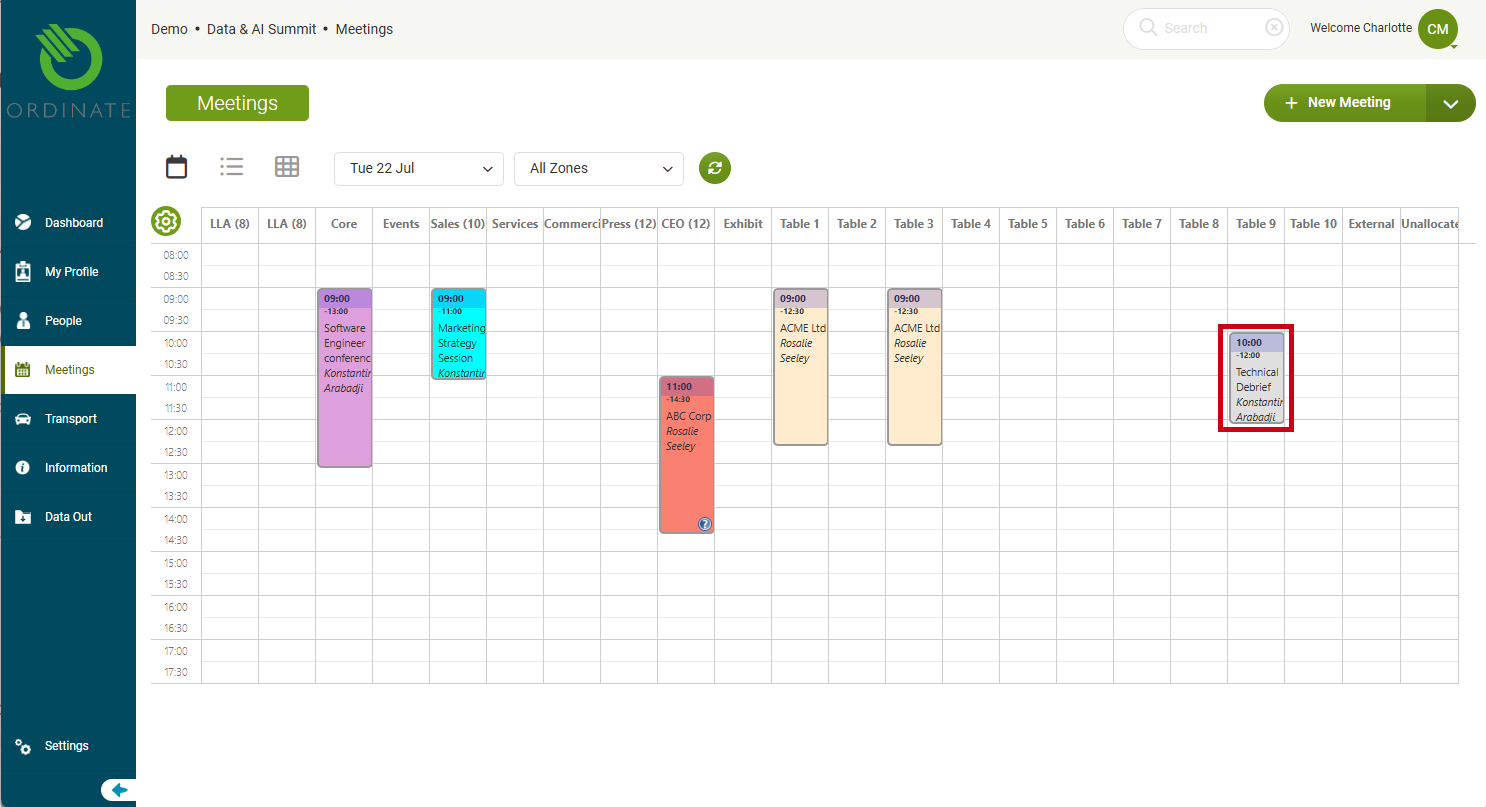
Simply click and drag a meeting from the Unallocated column to an available space. This method is efficient, but if you have many overlapping unallocated meetings, it may help to apply a zone filter to limit what is displayed on the calendar.
(Screenshot placeholder: Dragging unallocated meetings to a space in the calendar view)
-
From the Meeting List View:
-
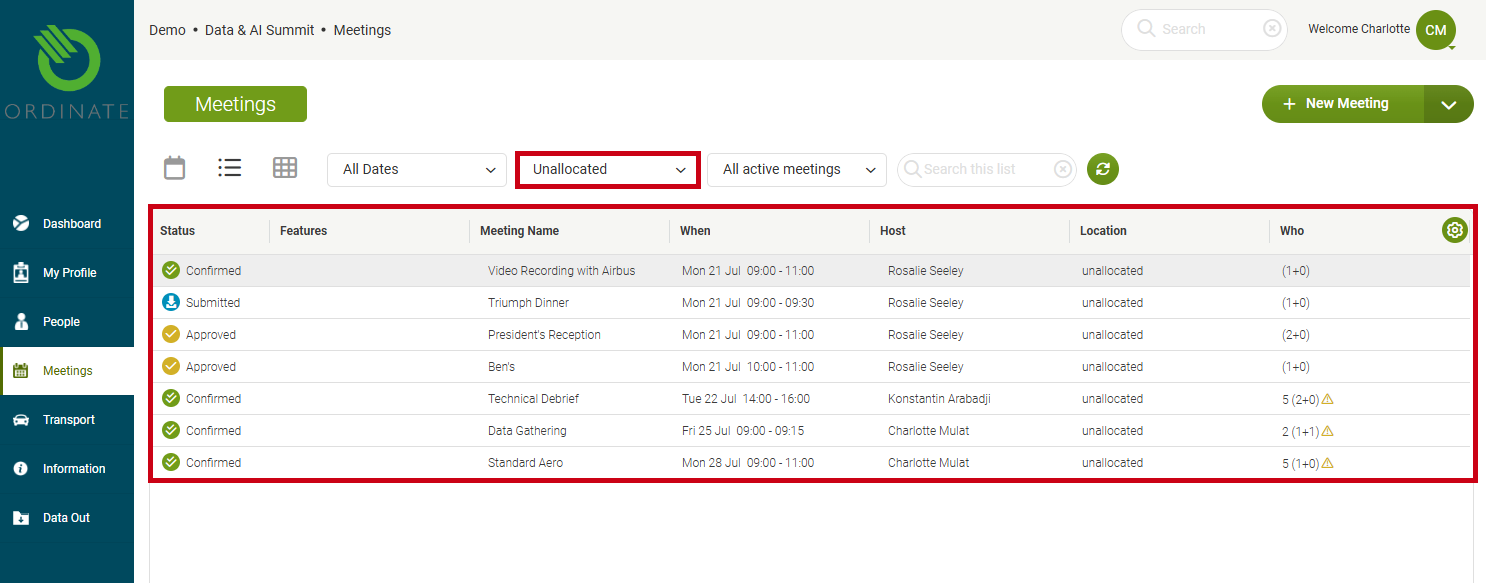
Filter the list by zone and select Unallocated to view only meetings that haven’t been assigned a location. Right-click a meeting and choose Allocate Location. You will only be presented with locations that are available during the specified timeframe.
(Screenshot placeholder: Filtering unallocated meetings in the meeting list view)
-
From the Meeting View:
-
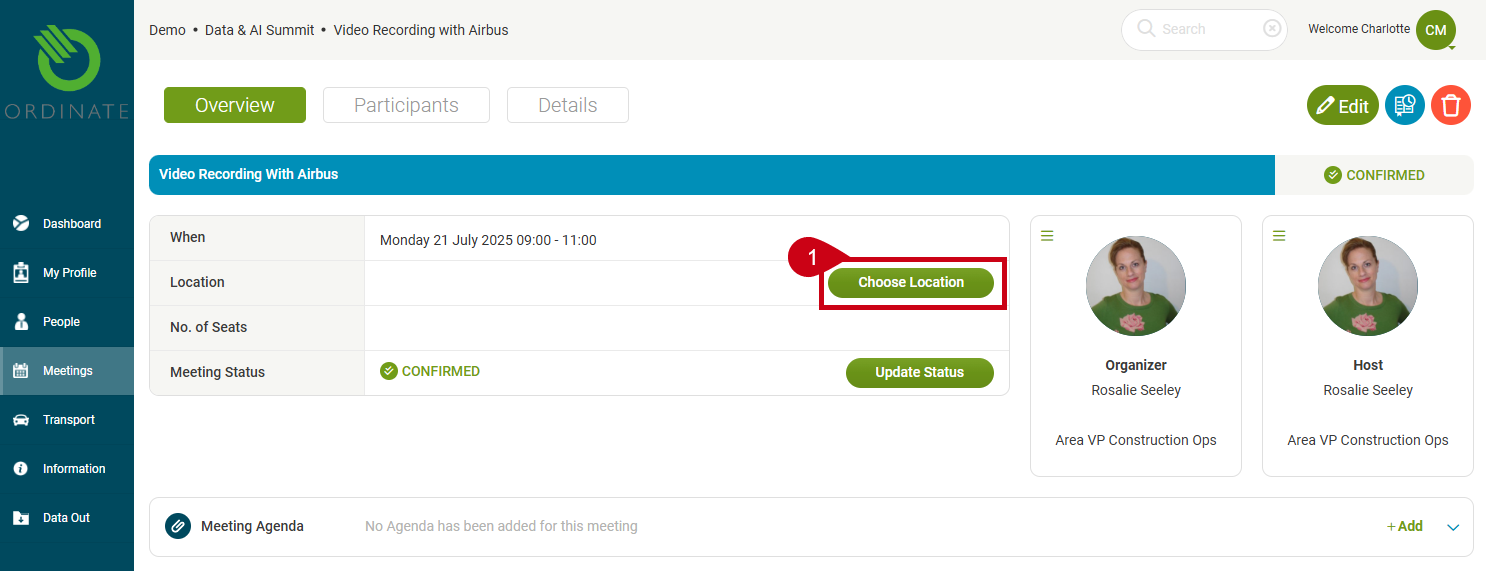
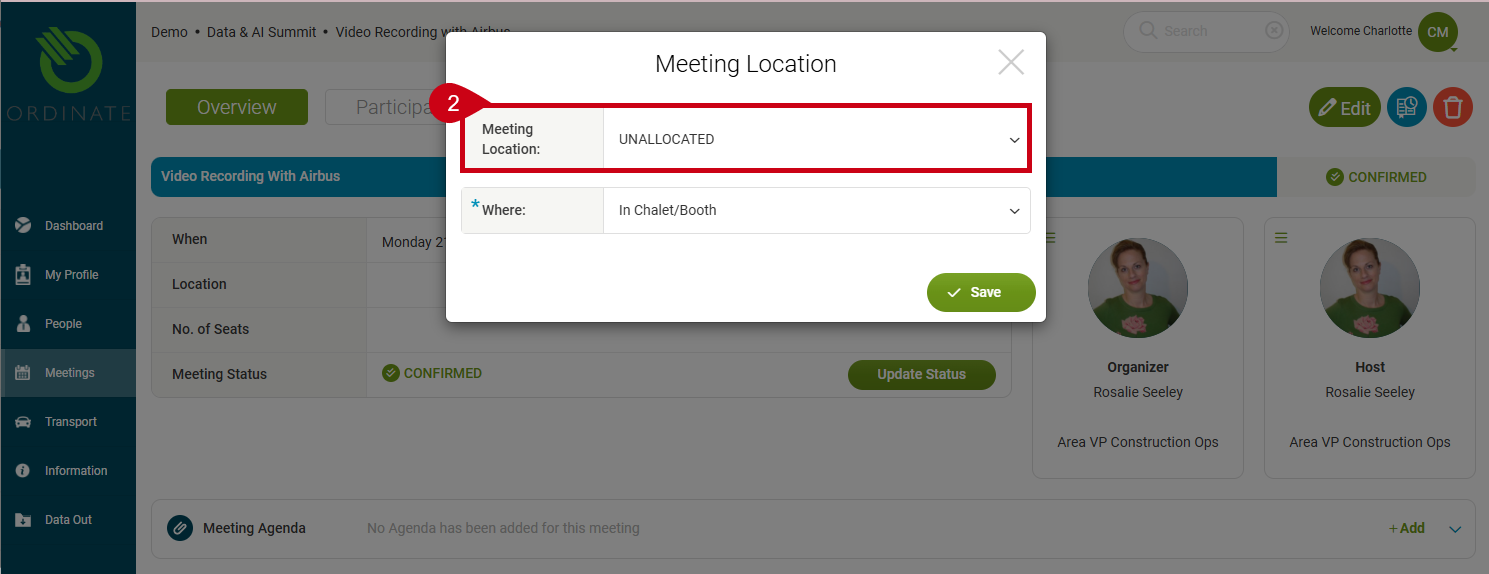
When viewing an individual meeting, the location field will be blank. Use the Choose Location button to select an available space. If you have the appropriate permissions, you can also edit the location in the main meeting form. However, Ordinate will still check availability when you attempt to save the meeting.
(Screenshot placeholder: Choosing a location in the meeting view)
Automatic Allocation of Meetings
Ordinate can be configured to automatically allocate meetings to available spaces, streamlining the process for users. This automatic allocation can be combined with timeslot management, so users are prompted to choose from available time slots, and the system automatically assigns a space from a pre-approved location group.
For further customization or assistance in configuring automatic allocation, contact the Ordinate support team.
(Screenshot placeholder: Automatic meeting allocation in action)