Managing Multi-Space Meetings
Ordinate allows you to extend or overflow a meeting to span multiple locations. This feature is useful when your meeting requires more space than a single room or when you need to add extra areas to accommodate more participants or activities.
Purpose of Extending Meetings to Multiple Locations
Sometimes a meeting may require overflow space, such as when the number of attendees exceeds the capacity of the original room or if additional areas (like breakout rooms or adjoining tables) are needed. By using the multi-space meeting feature, you can allocate additional spaces to a single meeting, ensuring that all attendees have the necessary room and resources.
This feature helps provide a seamless experience for larger or complex meetings, making sure every required location is linked and highlighted clearly in the calendar.
How to Extend a Meeting to Multiple Locations with Overflow
There are two ways to extend a meeting to additional spaces in Ordinate:
1. From the Calendar View
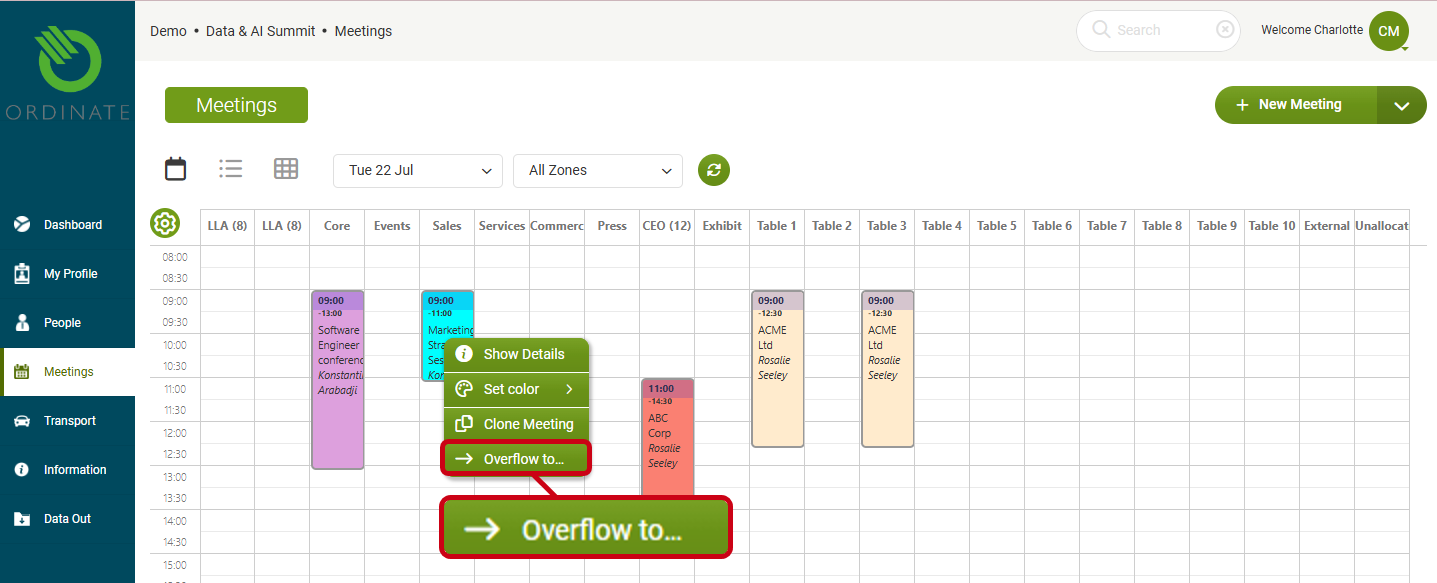
- Right-click on the meeting in the calendar.
- Select Overflow to... from the context menu.
- Choose the additional location(s) you want to add for the meeting.
(Screenshot placeholder: Overflow option in calendar view)
2. From the Meeting View
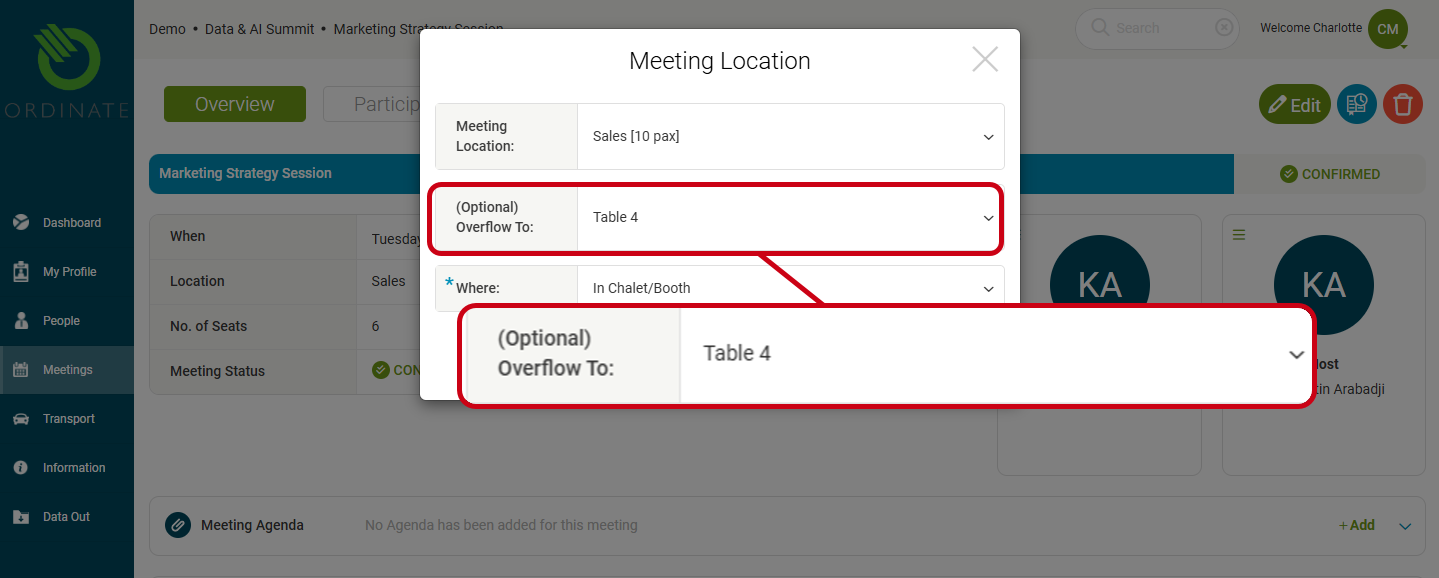
- Open the Meeting View.
- On the Overview tab, edit the location by clicking the Edit (pencil) icon.
- Select Overflow to... and choose the additional space(s) you need.
(Screenshot placeholder: Overflow option in meeting view)
Displaying Multi-Space Meetings
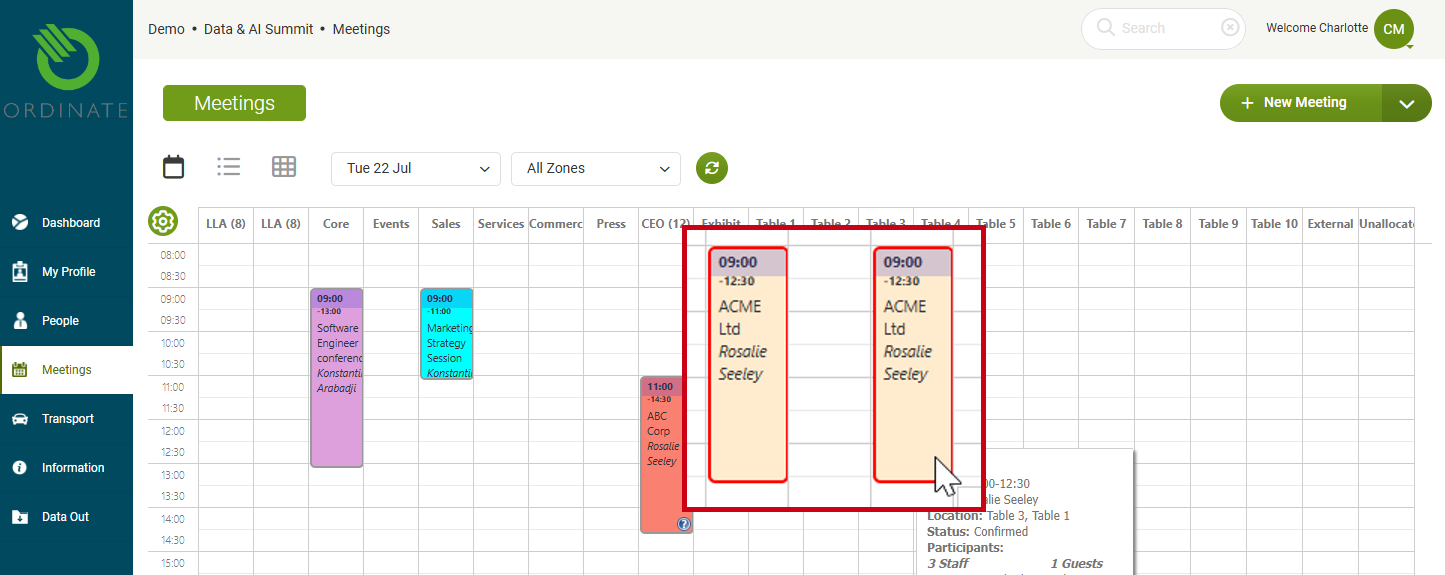
In the calendar view, a multi-space meeting will appear in all the allocated location columns. When you hover over any one of the connected locations, all the related locations will highlight with an outline to visually indicate they are part of the same meeting.
This makes it easy to identify linked spaces and ensure that the entire meeting setup is visible at a glance.
(Screenshot placeholder: Highlighting linked locations in the calendar)