External Meetings
External Meetings, also known as Off-Site or Off-Premise meetings, are meetings that take place outside your organization’s dedicated event space. These could occur in the space of another exhibitor at the event, or in a venue like a restaurant in town.
Adding External Meetings to your calendar provides a complete view of your attendees' commitments, helping you manage their availability effectively.
Specifying an External Location
When scheduling an external meeting, you will have access to a free text field where you can manually input the name and details of the location. This flexibility allows for a wide range of external venues.
Displaying External Meetings
In Ordinate’s meeting calendar view:
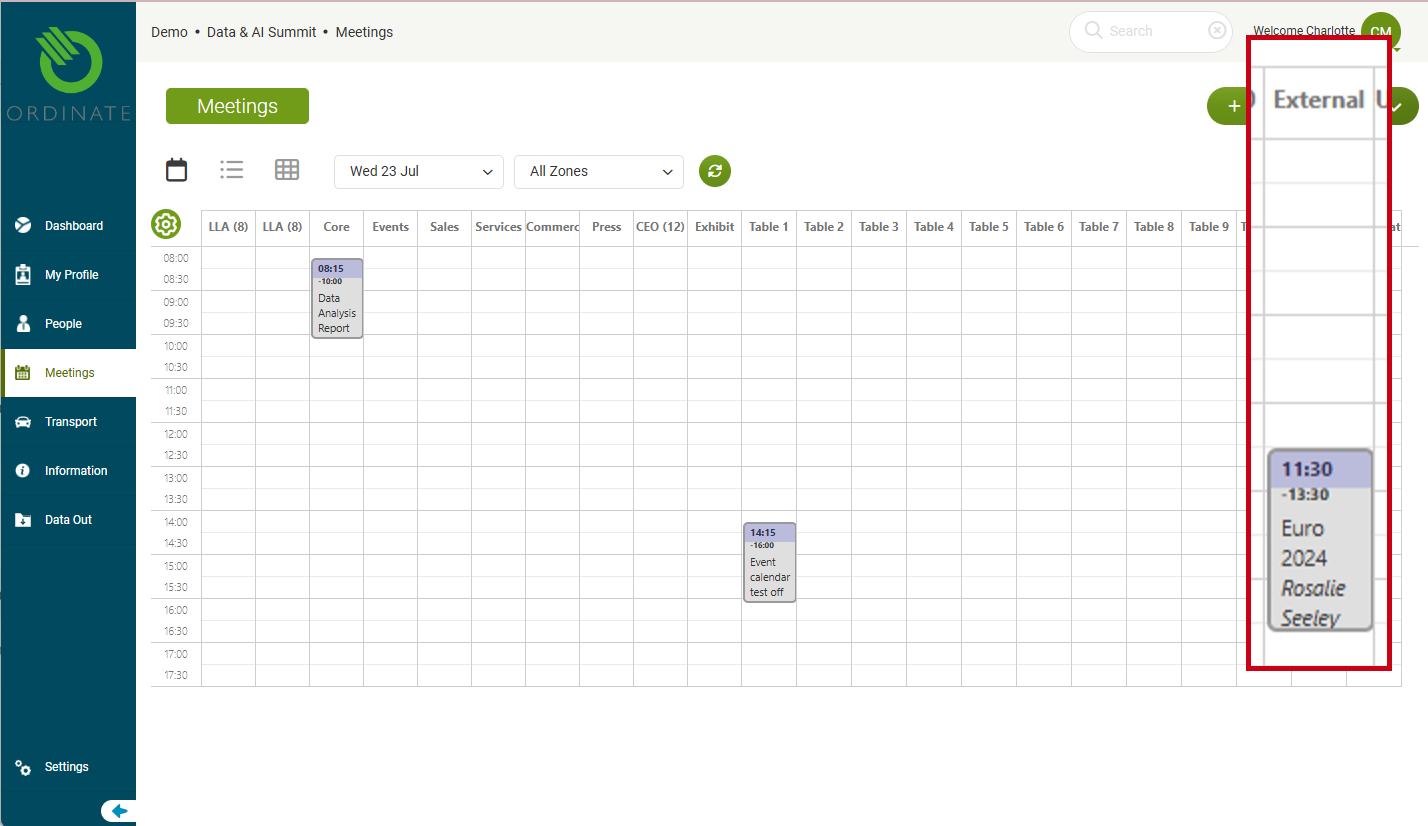
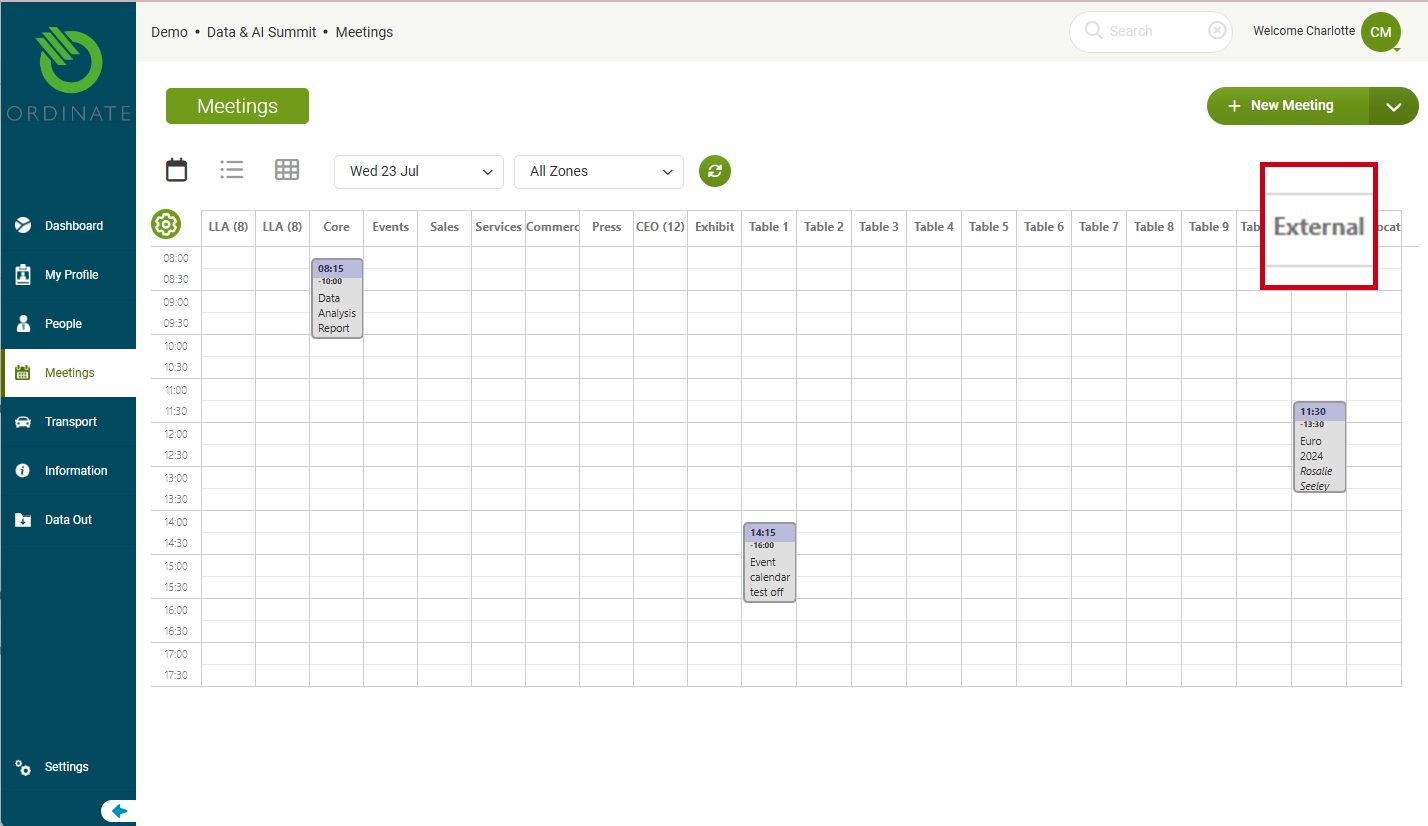
- External meetings are displayed in a dedicated column, similar to a zone.
- You can filter meetings by zone, including the external meetings column, allowing you to show or hide these meetings as needed.
(Screenshot placeholder: Displaying external meetings in calendar view)
In the list view:
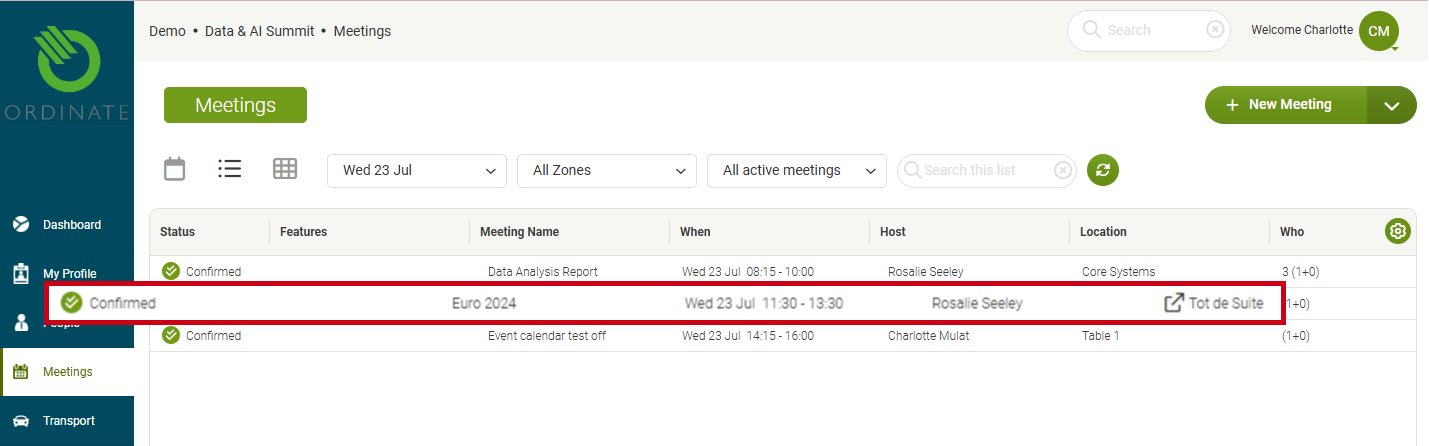
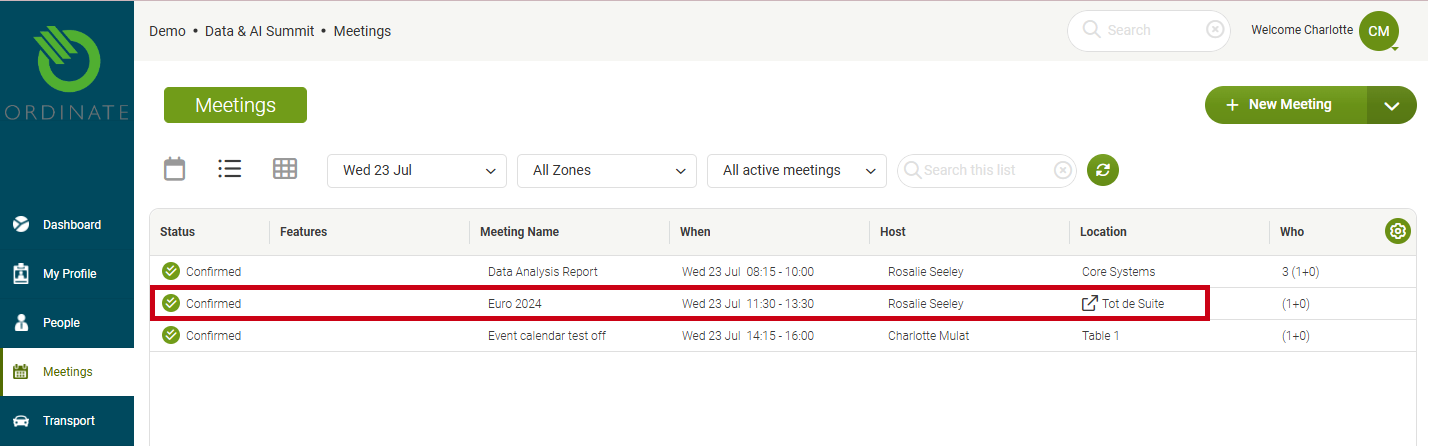
- External meetings are indicated with a special symbol before the location name, making them easy to identify. Like in the calendar, they can be filtered out using the zone filter.
(Screenshot placeholder: Displaying external meetings in list view)
Dates & Times for External Meetings
While most meetings are constrained to the dates and times of the event, external meetings often occur outside regular hours or even beyond the main event dates.
When scheduling an external meeting:
- A full 24-hour clock is available for scheduling, giving you flexibility for meetings outside normal event hours.
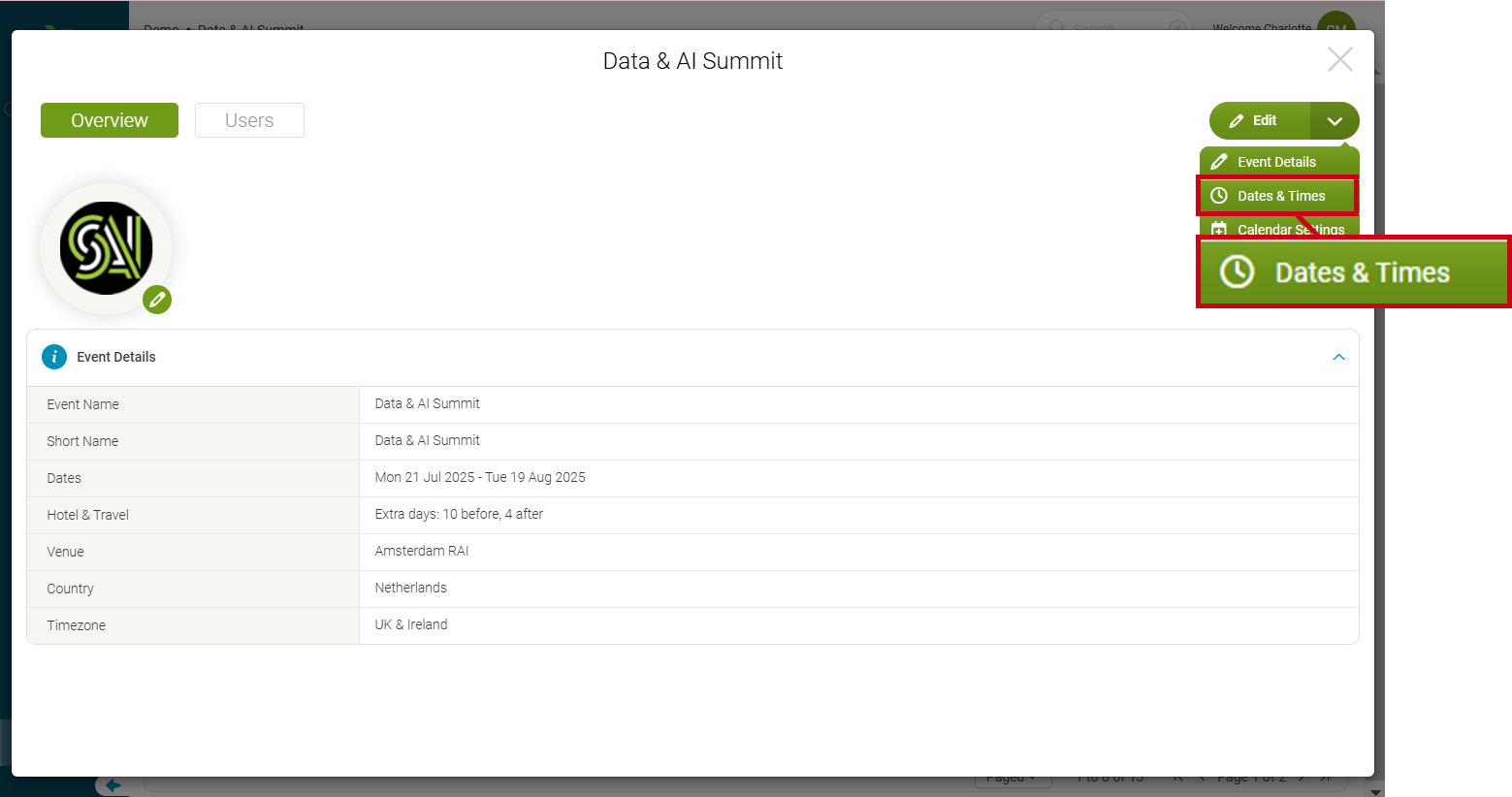
- You can extend the date range of external meetings by adjusting the event settings. To do this, go to Settings > General > Events, double-click to open the event, and select Edit > Dates & Times. Here, you can specify how many days before or after the event you can plan external meetings.
(Screenshot placeholder: Adjusting date and time settings for external meetings)
Switching Between External and On-Premise Meetings
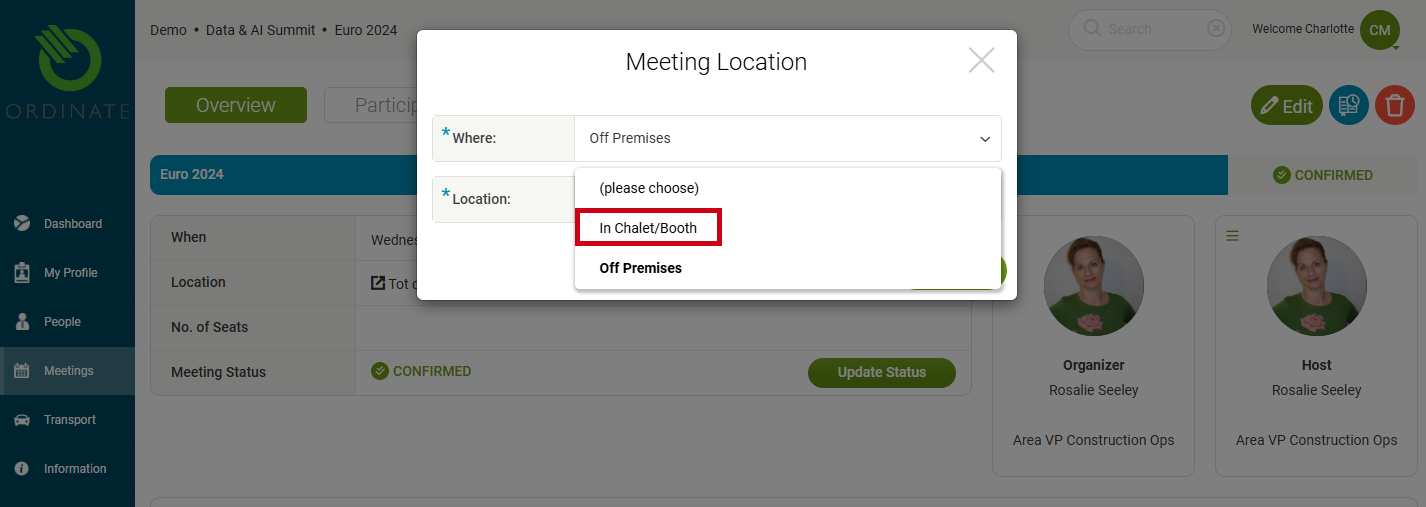
If a meeting was initially created as an on-premise meeting but now needs to be switched to an external meeting, or vice versa, this can be done easily (with appropriate access rights).
- Go to the full meeting view.
- In the Overview tab, you’ll see the location listed with an edit pencil icon. Clicking this icon allows you to toggle between external and on-premise locations.
(Screenshot placeholder: Switching between external and on-premise locations)