Capacity Management
Managing meeting space capacities in Ordinate helps ensure that rooms and spaces are used efficiently, while also allowing for flexibility when necessary. Each meeting location has a defined capacity, but Ordinate allows meetings to exceed this limit when needed.
Capacity Limits and Exceeding Them
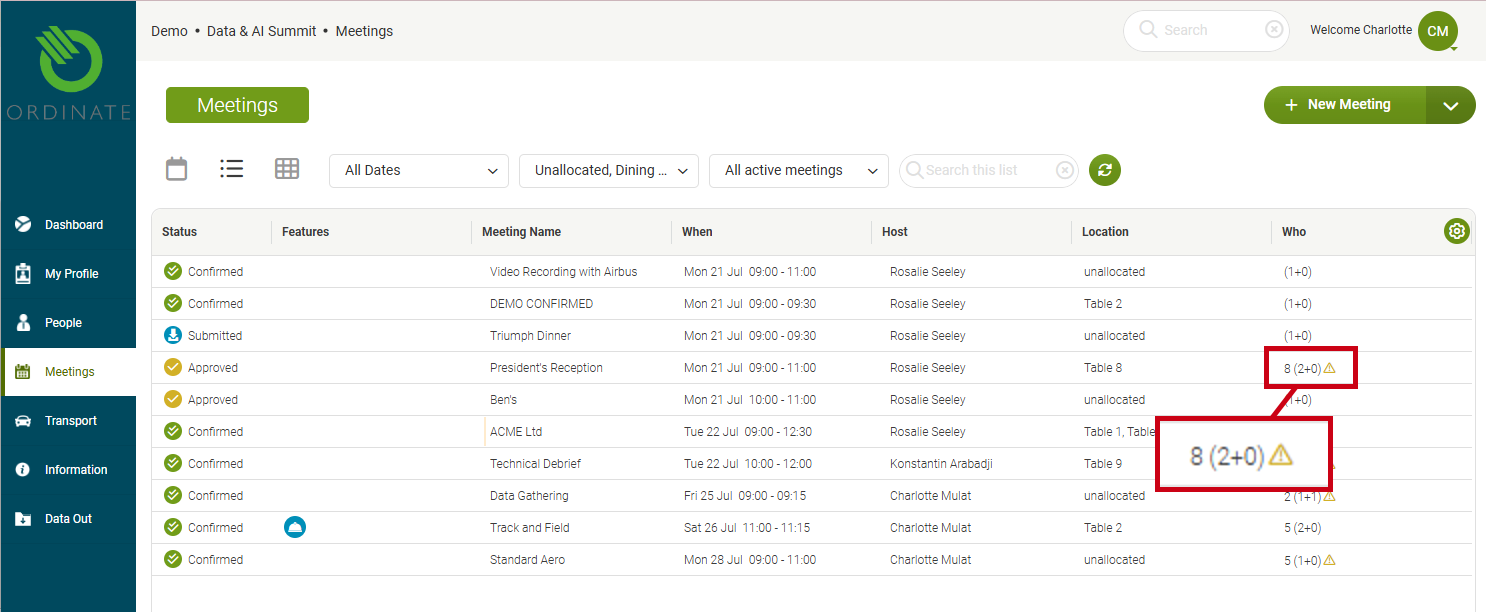
While each meeting location has a set capacity, it’s common for meetings to exceed this number under certain circumstances—whether that means adding extra chairs, standing room, or brief visits from other participants. If a meeting exceeds the space's capacity, a warning triangle will appear on the calendar view, alerting users to this condition.
(Screenshot placeholder: Calendar warning for exceeding capacity)
Specifying Seats Required
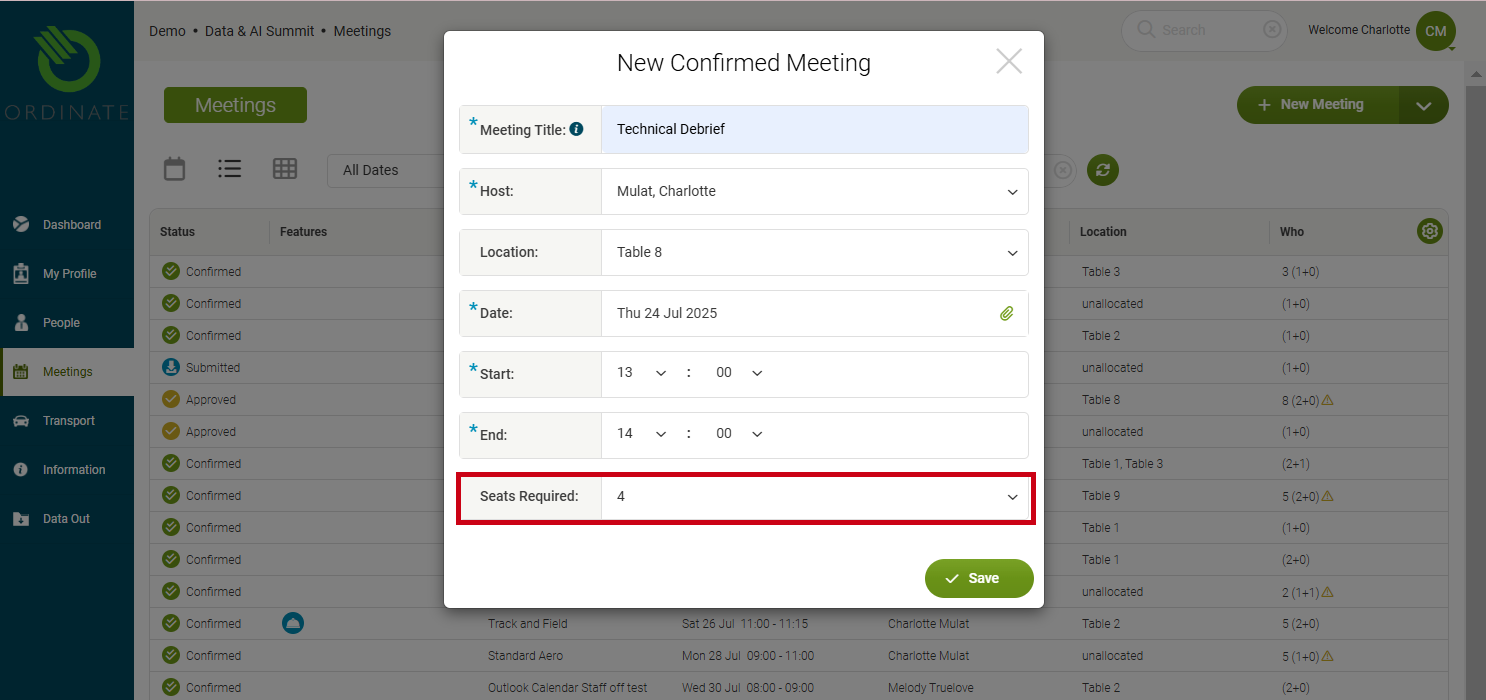
Users can specify the number of seats required when requesting a meeting. This feature is especially useful when not all participant names are known in advance. It helps administrators allocate the most suitable space based on expected occupancy, even when the participant list is incomplete.
However, once all participants are added, the seats required field might no longer align with the actual number of attendees. This can result in discrepancies, as it is possible to exceed the original number of seats requested. Ordinate offers settings to help manage this:
- Prevent Exceeding Seats: There is a system setting that prevents users from adding more participants than the number of seats requested. Ordinate Support can configure this if required.
- Progress Requirement: Another optional setting can require users to supply names for all requested seats before the meeting can proceed. This ensures the participant list is complete before moving forward with meeting approvals or confirmations.
(Screenshot placeholder: Seats required in meeting form)
Capacity Warnings
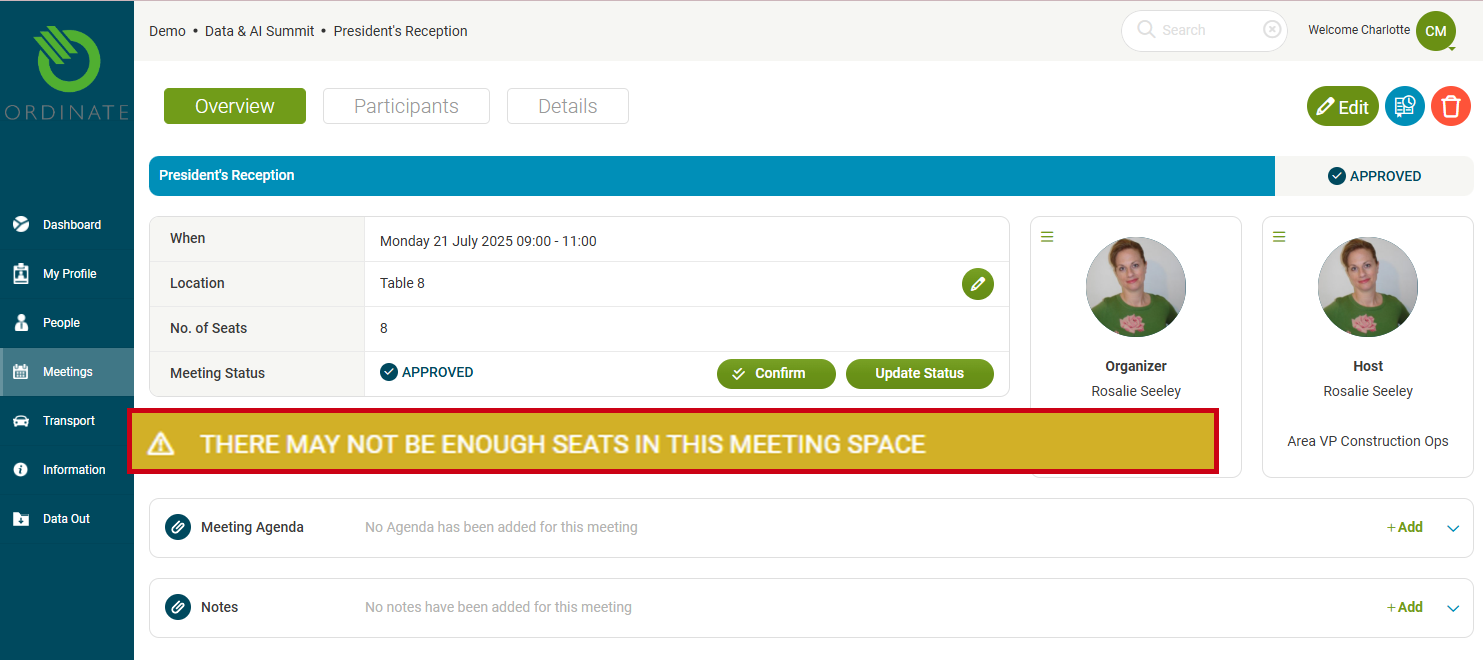
Ordinate can be configured to display a warning in the meeting view if the location capacity has been breached. This visual cue helps users and administrators see at a glance when a meeting might be too large for the space.
Note: If you extend a meeting to an overflow space, the capacity will not automatically update to include the extra space. This is an area where manual adjustments may still be necessary.
(Screenshot placeholder: Capacity warning in meeting view)
Meeting List View: Understanding the "Who" Column 
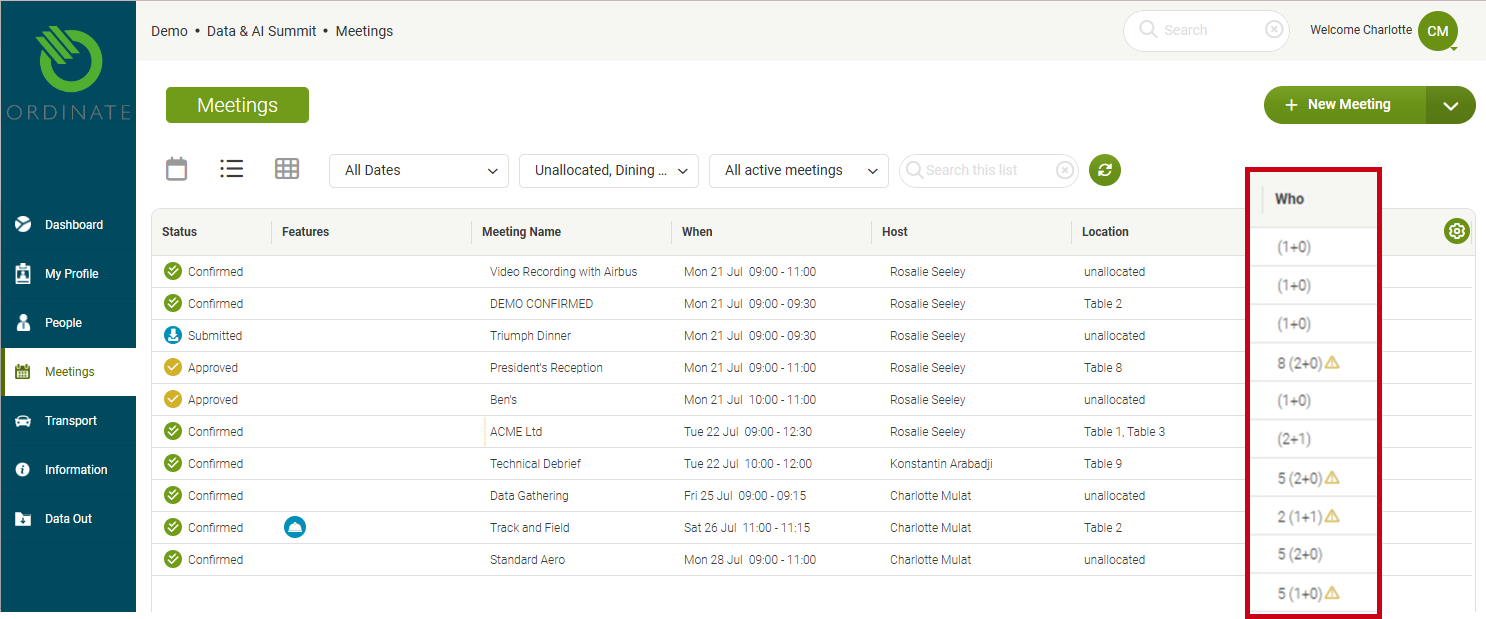
In the Meeting List view, the "Who" column provides a breakdown of seat requirements and participants, with numbers displayed as:
- 8 (3+2): This example indicates:
- 8 seats required for the meeting.
- 3 staff participants have been named.
- 2 guests have been named.
If the seats required option is enabled, this gives admins a quick glance at how many participants are expected versus how many have been confirmed.
(Screenshot placeholder: "Who" column in Meeting List view)
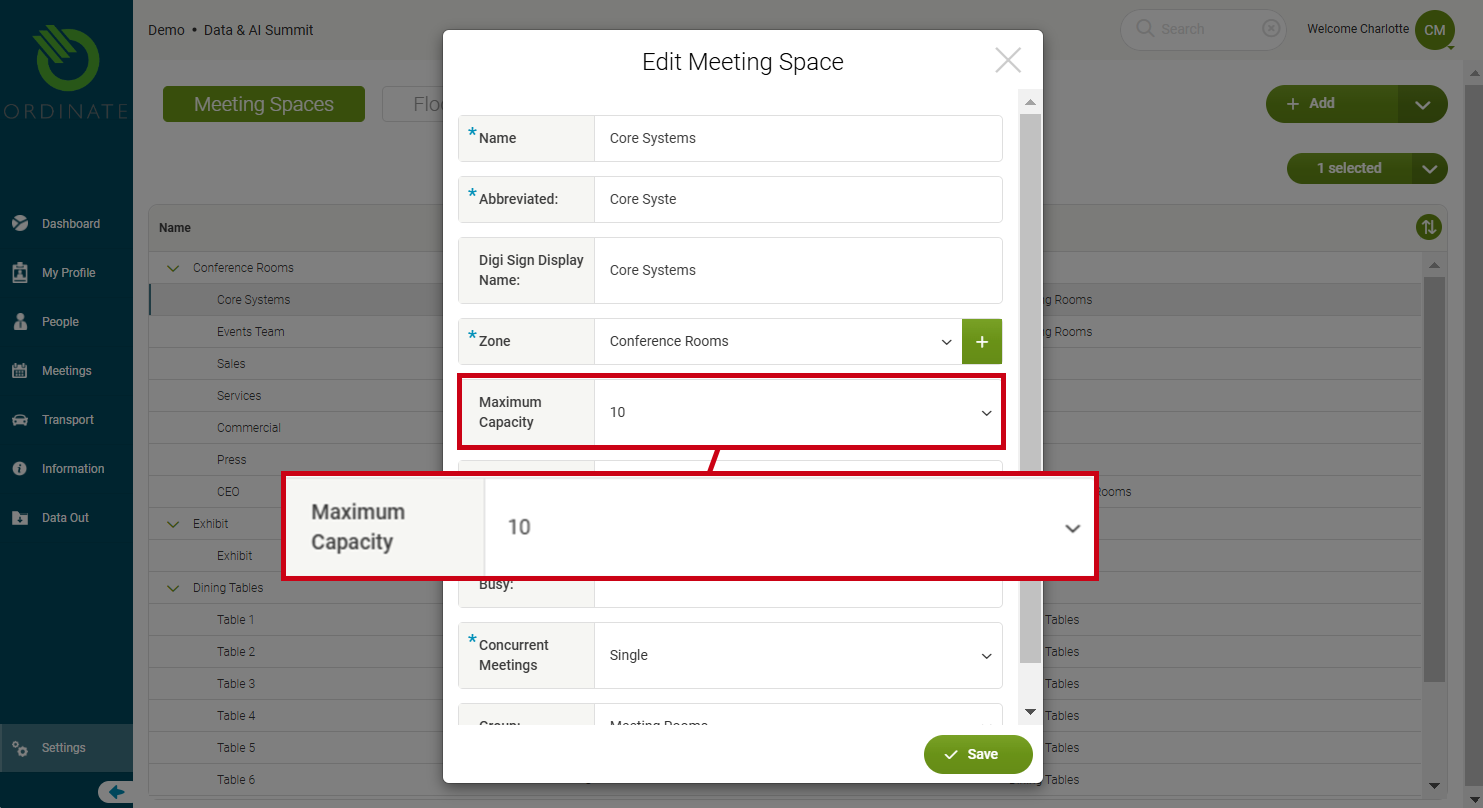
Configuring Location Capacities
Location capacities can be managed in the settings:
- Navigate to Settings > This Event > Meetings.
- Open the location you want to configure.
- Update the capacity field as necessary.
(Screenshot placeholder: Managing location capacity in settings)
Specifying the number of seats required in a meeting request is an optional field in the main meeting edit form. If this feature is not enabled for your organization, please contact Ordinate Support to configure it.