Assistants
The Assistant panel in Ordinate allows you to assign an assistant to help manage a staff member’s details, such as meetings, messages, and event activities. This can be particularly useful for higher-level staff who delegate administrative tasks.
Choosing an Assistant
To assign an assistant:
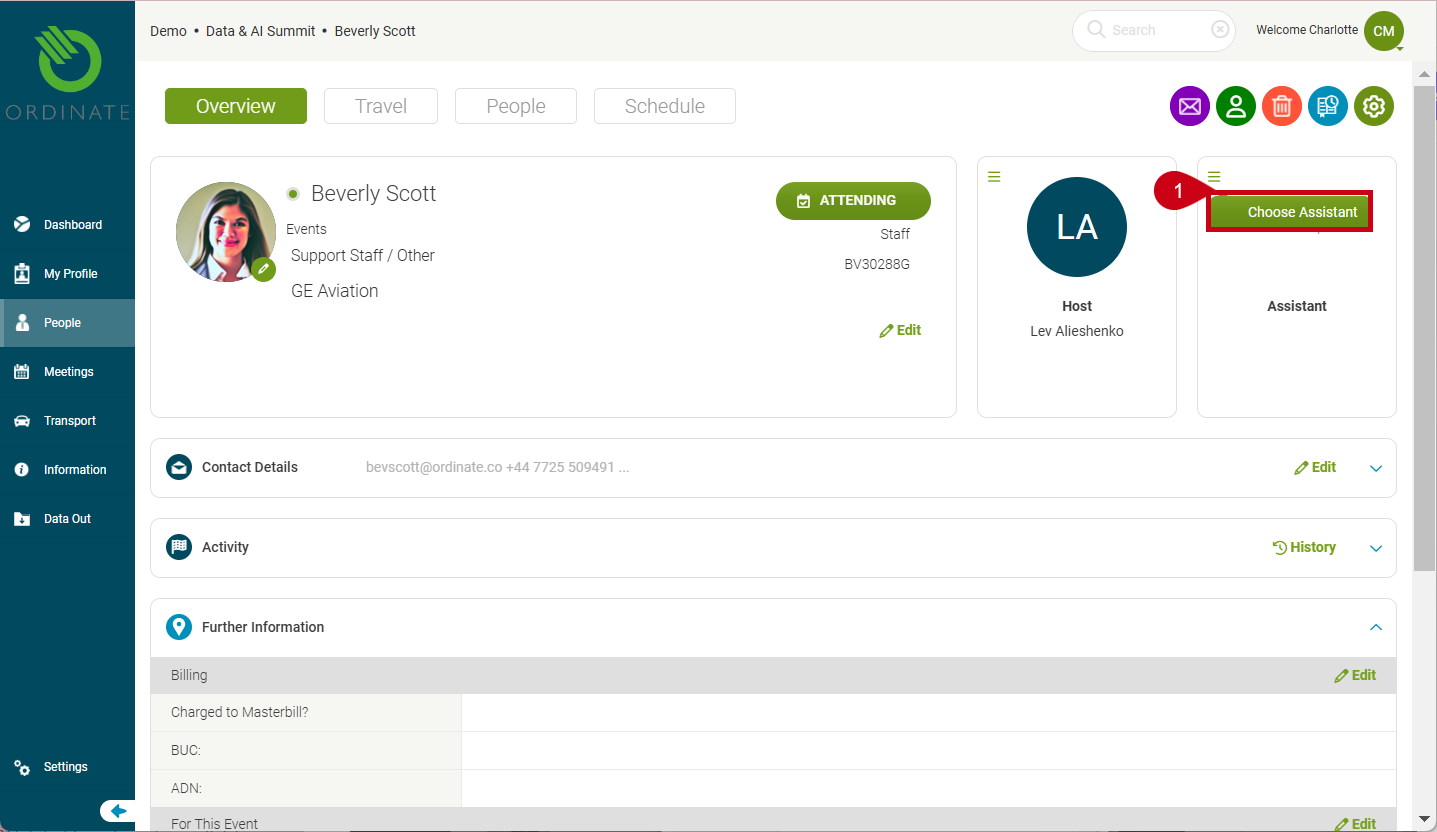
- Click Choose Assistant in the assistant panel.
- A dialog box will open, allowing you to search and select a person from a dropdown list.
- Once selected, the assistant’s name and role will appear in the profile.
(Screenshot placeholder: Choosing an assistant)
Email CC Permissions
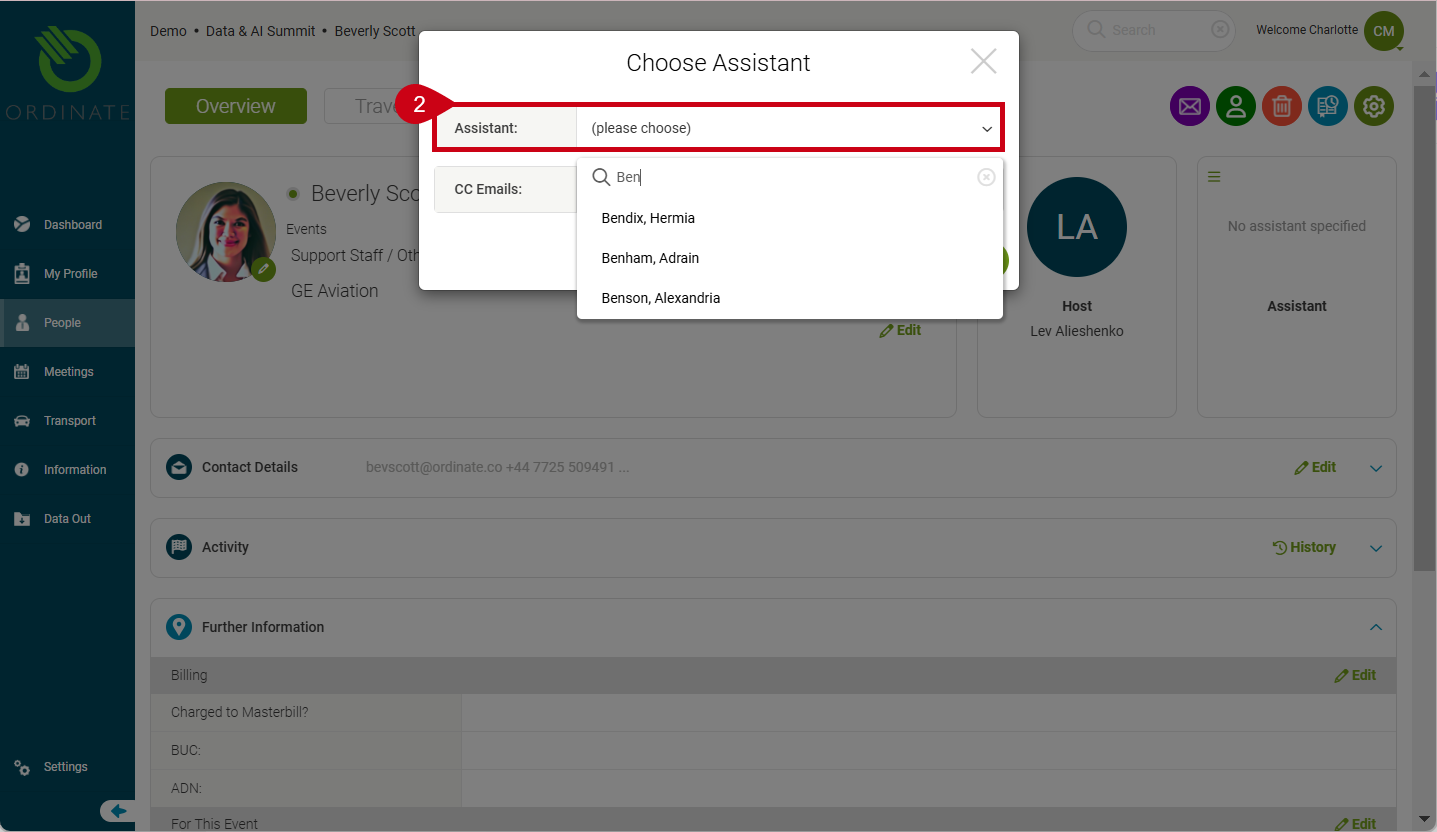
When assigning an assistant, you can specify what emails the assistant is copied in on:
- None: The assistant is not copied on any communications.
- Standard: The assistant will be copied on most internal communications but will not receive login details or sensitive information.
- Full: The assistant will be copied on all emails, including those containing sensitive details like login information.
This ensures assistants receive only the relevant emails.
(Screenshot placeholder: Email CC permissions)
Managing an Assigned Assistant
After assigning an assistant, you can:
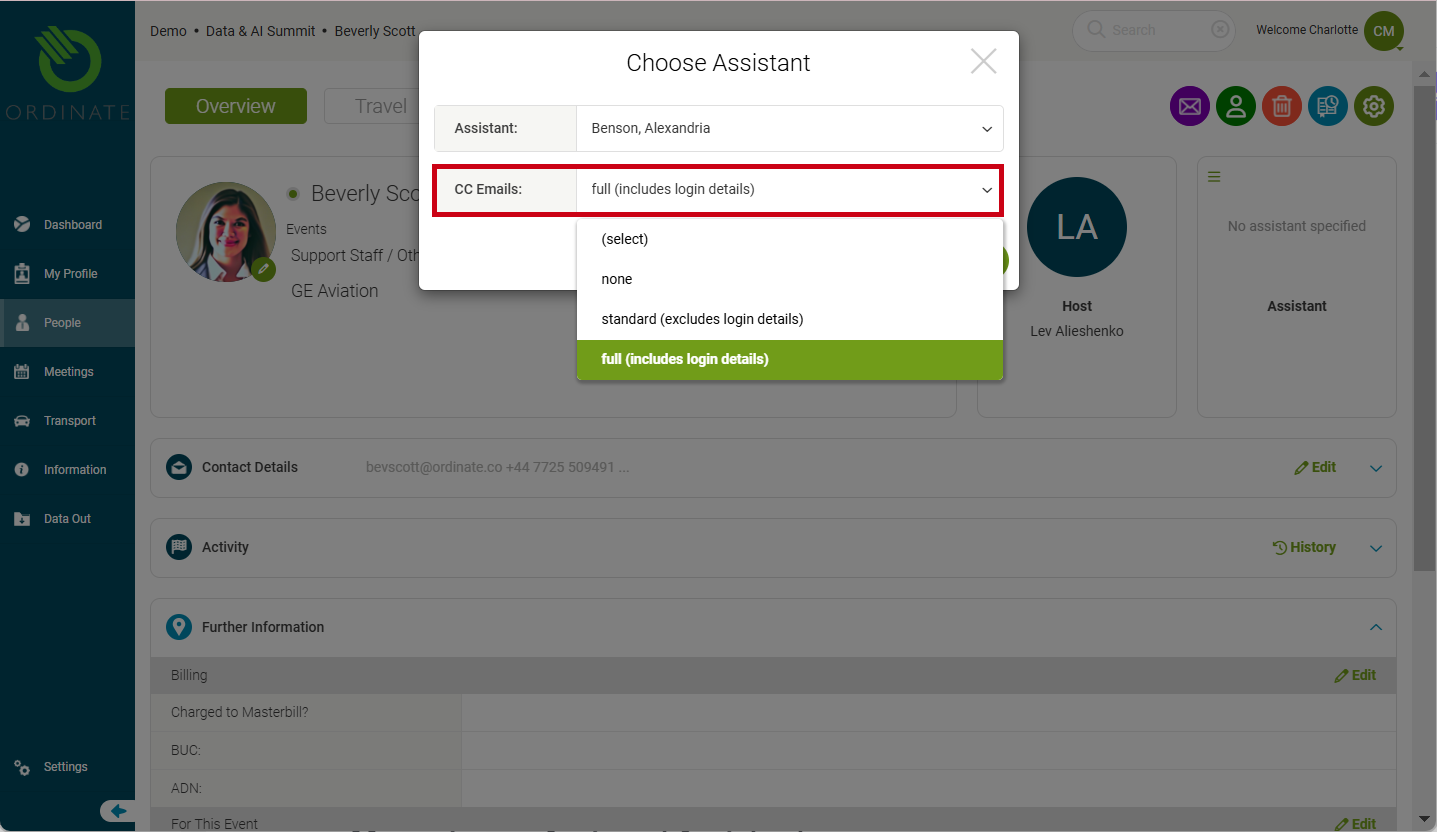
- Change or remove the assistant by selecting Choose Assistant again.
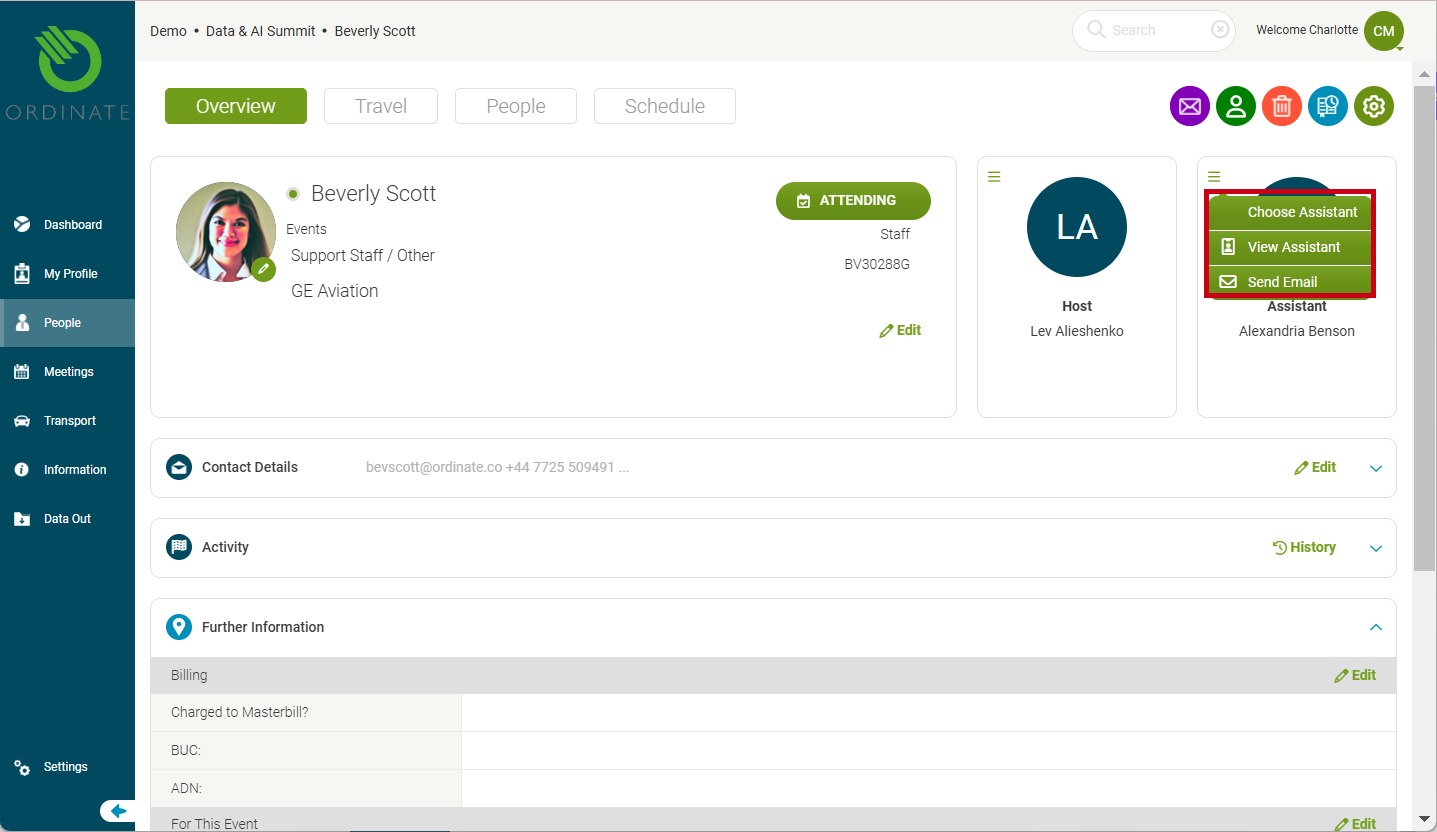
- Use the context menu to view the assistant’s profile or send an email directly to them.
(Screenshot placeholder: Assistant actions)