Arrival & Departure (e.g. Flight) Details
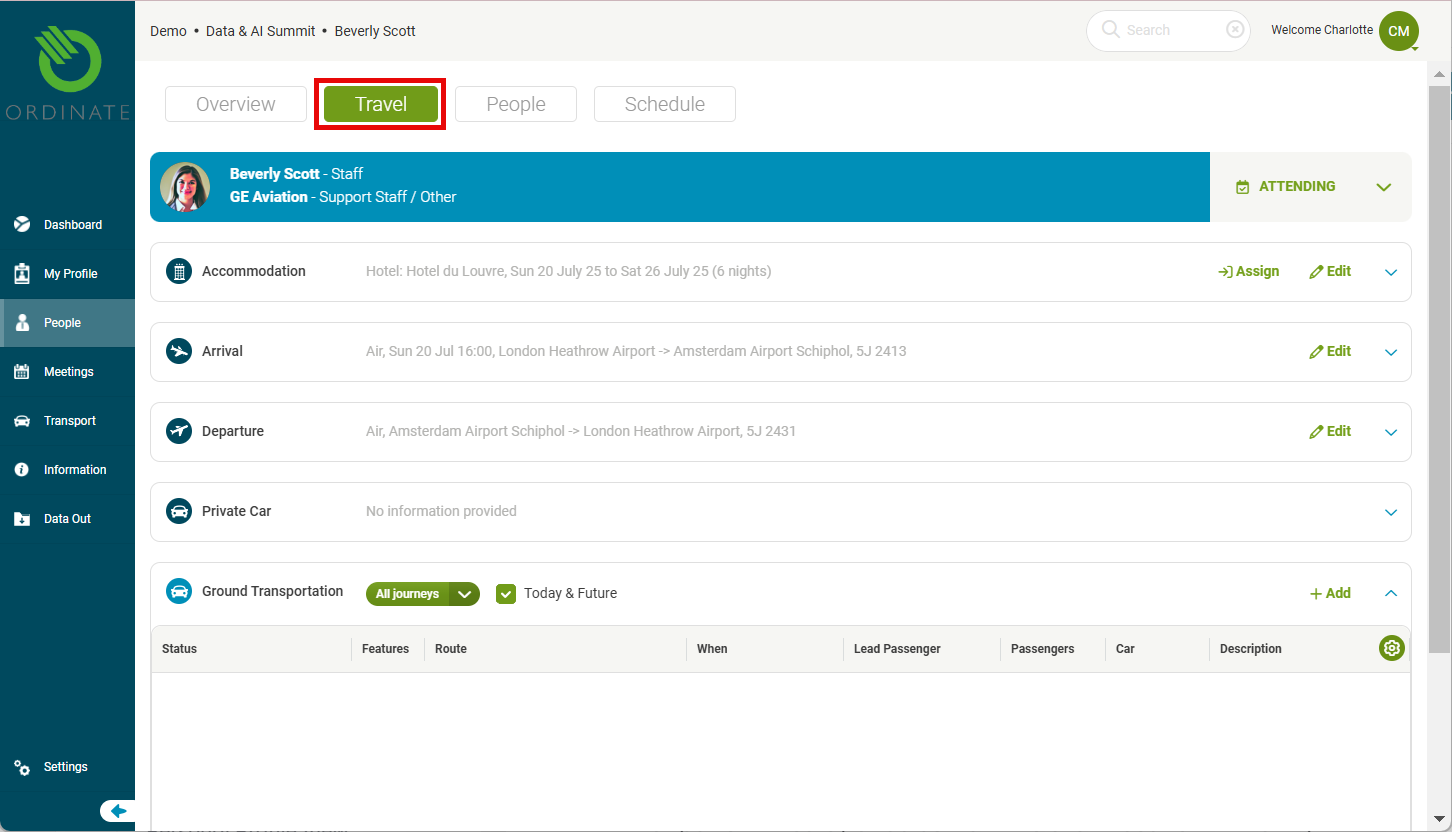
In the Travel Tab of the attendee's profile, you can collect and manage travel details. Arrival and departure panels are separated, where users or admins can input various modes of transport, including air, train, car, or local.
(screenshot)
Air Travel
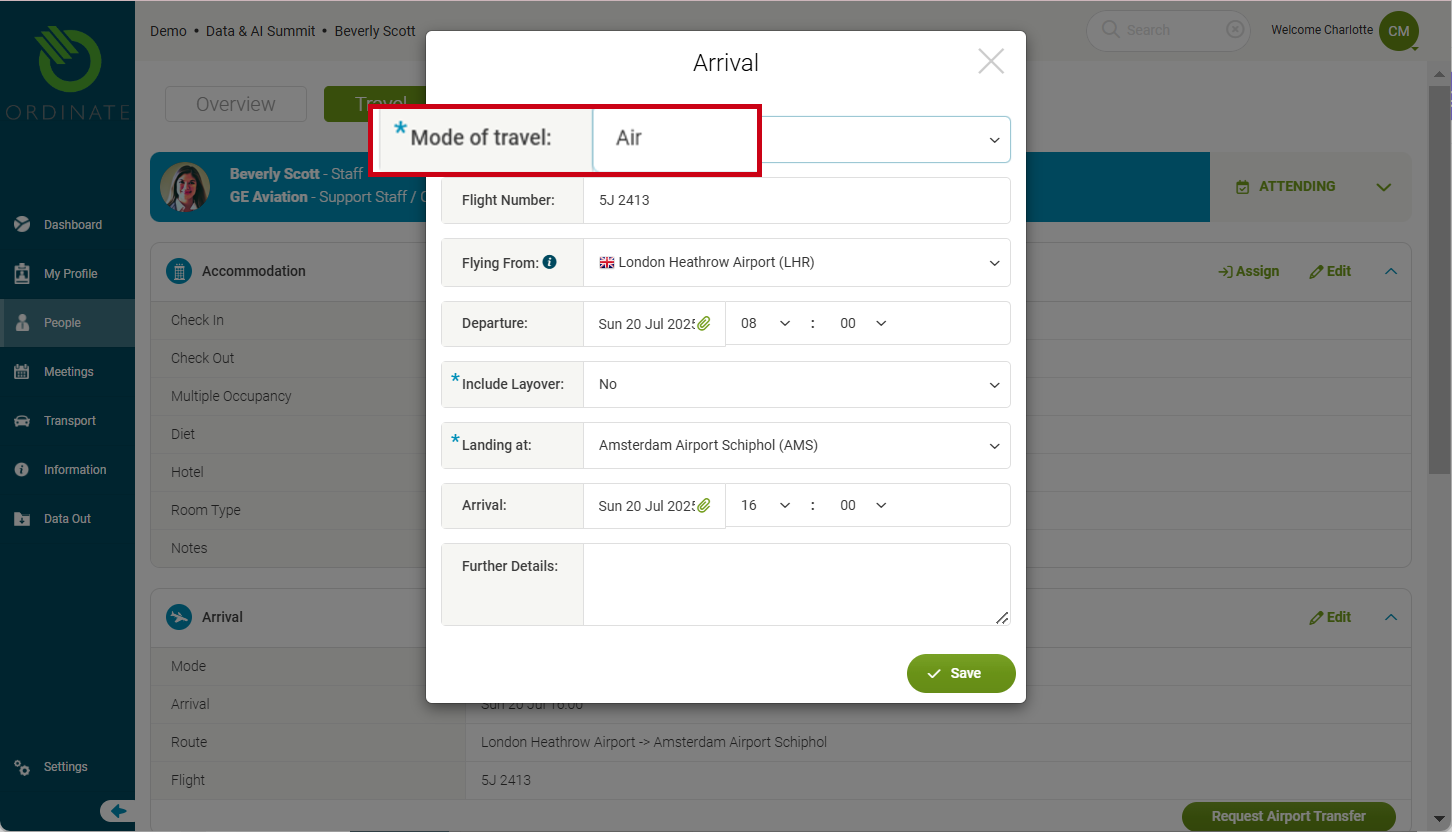
For air travel, select from a master list of major airports, with nearby airports limited by a radius from the event location. If the flight includes a layover, you can also provide connecting flight information (layover fields will display if needed).
(screenshot)
Train Travel
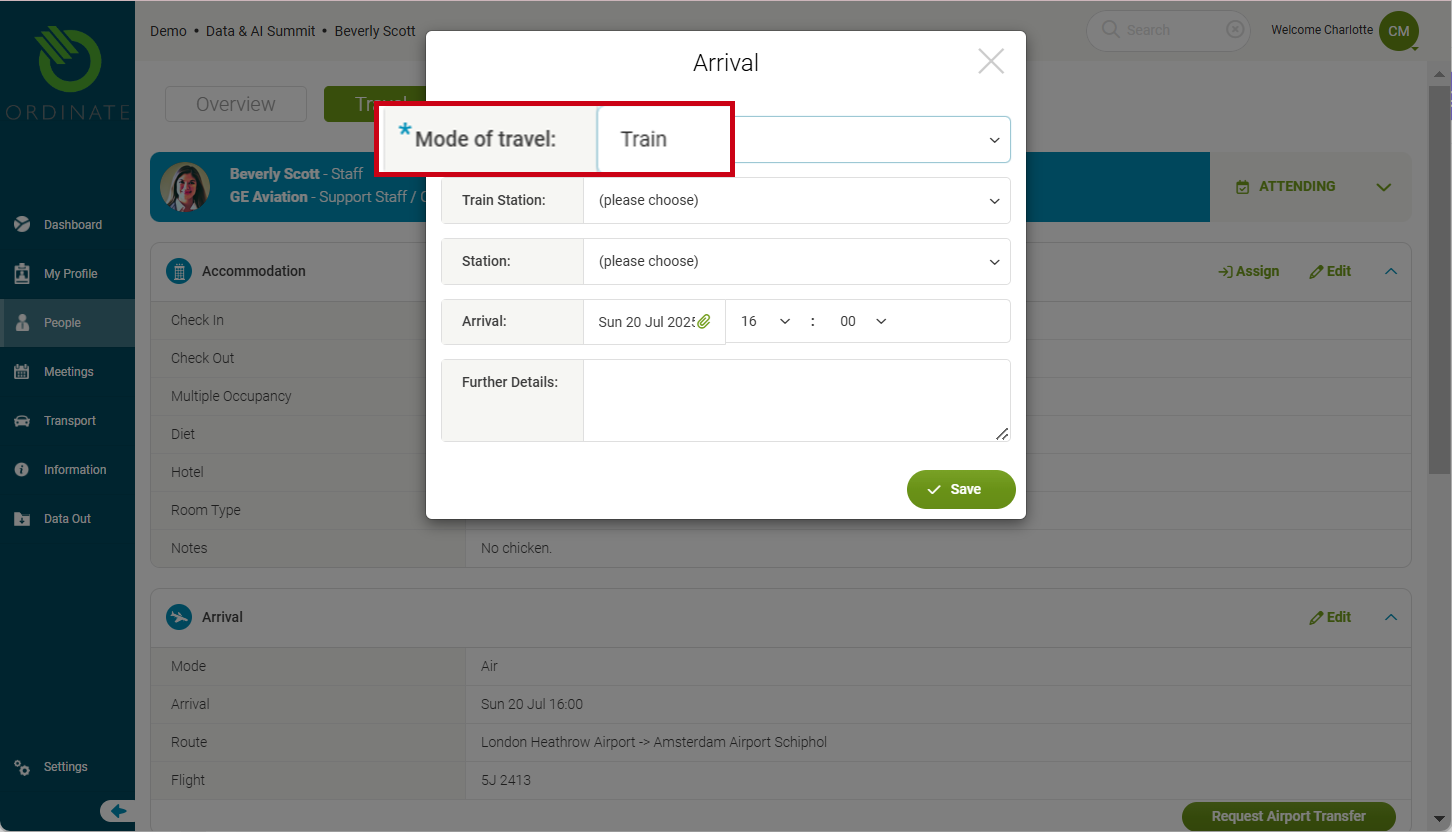
For train journeys, select from pre-configured Transport Destinations that include train stations. These stations must be categorized as such within the system (explained further below in "Managing Stations and Airports").
(screenshot)
Car Travel
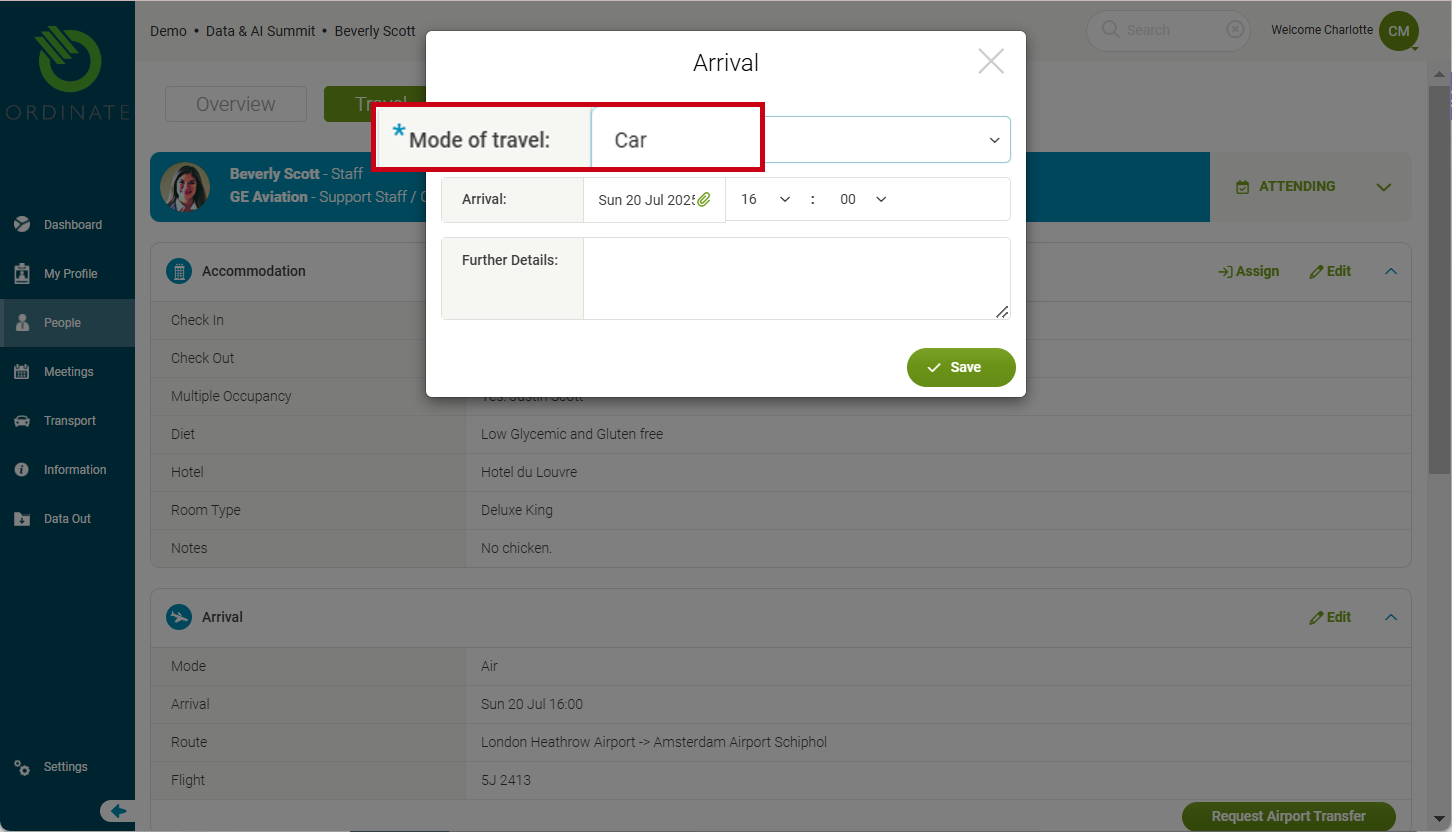
Car arrivals require just the date and time of arrival. This is useful for those attendees who will drive to the event venue.
(screenshot)
Local Travel
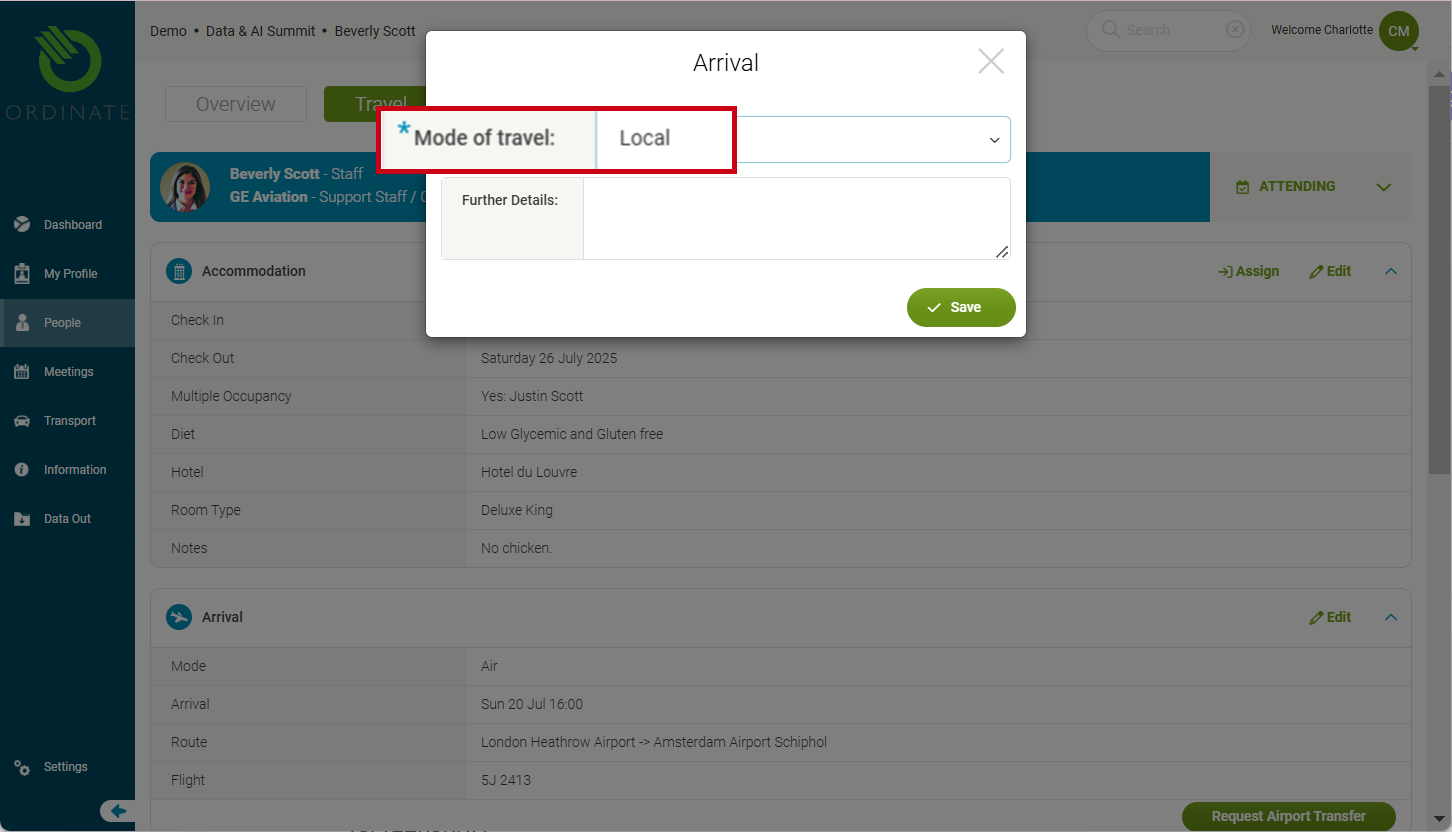
For attendees living locally, simply select Local as the travel mode.
(screenshot)
Matching Travel to Hotel Bookings
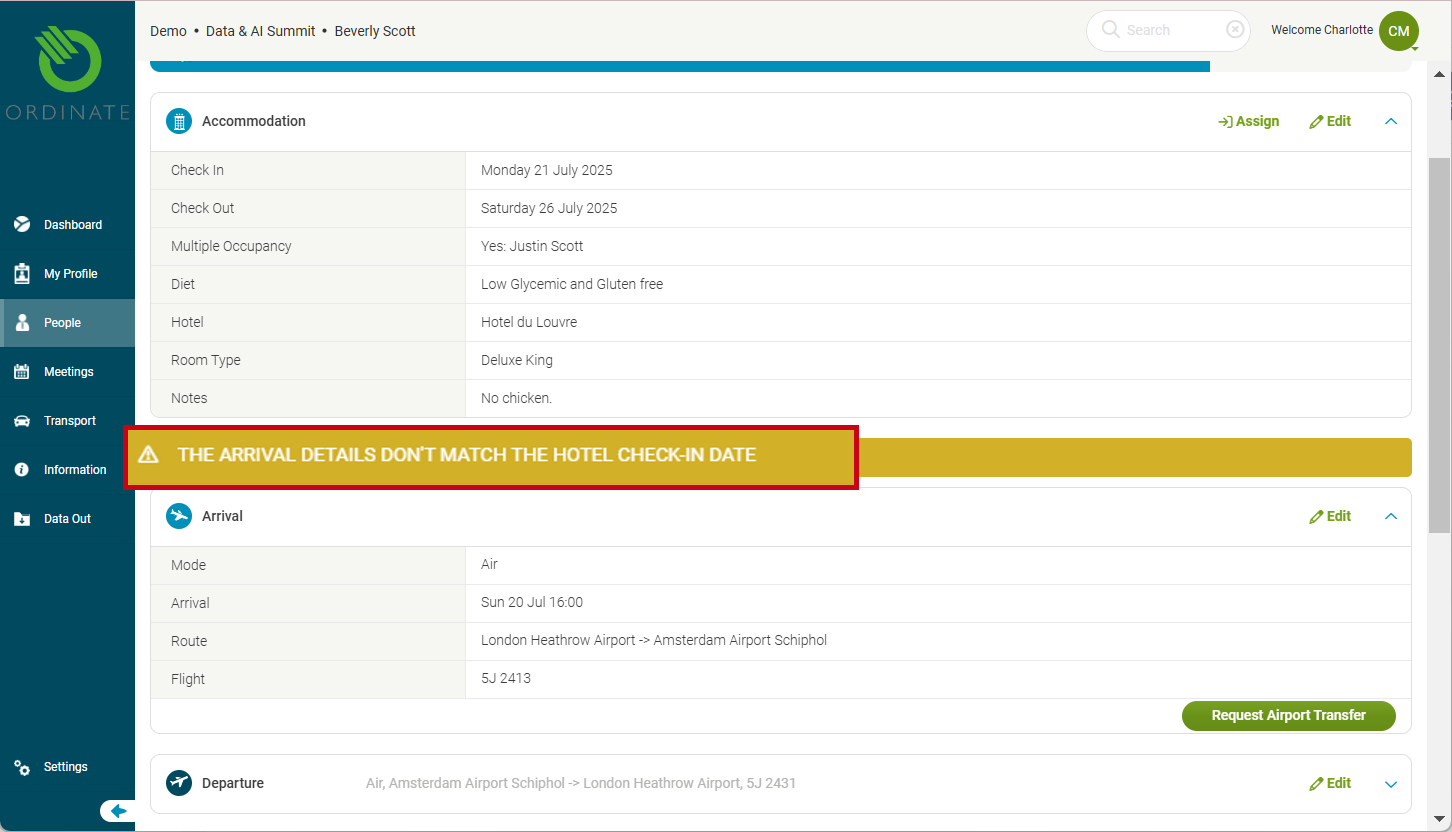
Ordinate helps ensure arrival and departure times align with hotel check-in/out dates. If there’s a mismatch, a warning will appear, helping to resolve potential conflicts.
(screenshot)
Managing Stations and Airports
Airports
Ordinate has a global master list of major and medium-sized airports. For the remote airport, users can select any airport by typing a few characters of the city, airport name or IATA code, and selecting from the list. For the local airport (i.e. at the event end), the list is restricted to those within a set radius of the event location, ensuring users only select nearby airports for their travel. This radius can be configured in the Event Settings. (ADD LINK).
Train Stations
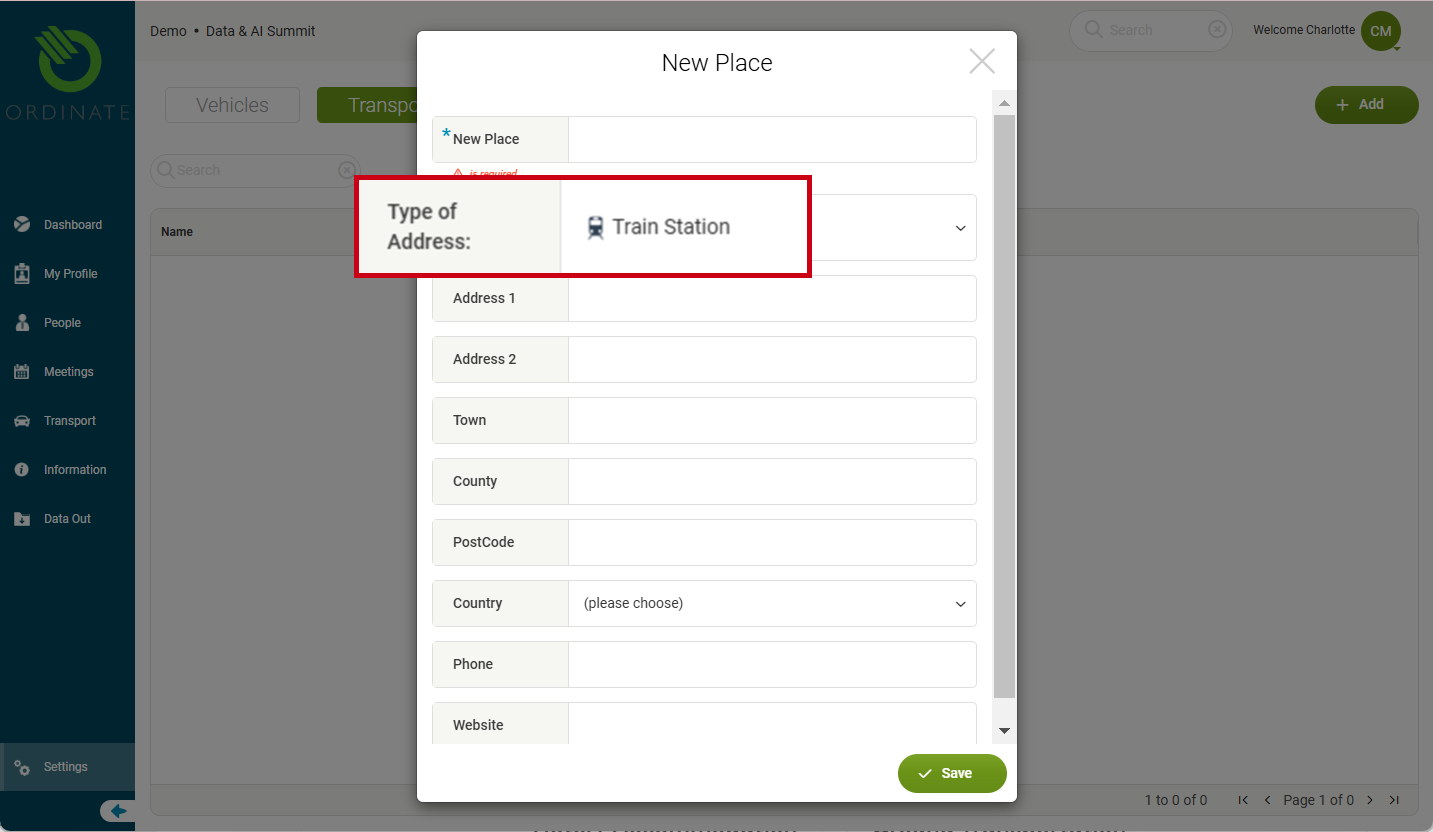
Train stations are managed per event in Settings > This Event > Transport > Transport Destinations. When adding a train station, ensure it’s categorized under type of address as a train station.
(screenshot of adding a train station)